Order Withdrawal¶
Extension for Magento 2¶
User Manual¶
CopeX GmbH Web: https://copex.io Email: office@copex.io
Table of Contents¶
- Introduction
- Requirements
- Configuration
- Customer Flows
- Admin Overview
- Email Templates
- Withdrawal Eligibility
- Status Lifecycle
- Troubleshooting
- Compliance Obligations
1 Introduction¶
This module implements the EU right of withdrawal as a one-click action, in line with EU Directive (EU) 2023/2673, which mandates such a button in EU online shops from 19 June 2026.
Two customer-facing flows are supported:
- Logged-in customer flow — customers revoke a purchase from their order history with a single click and a confirmation prompt.
- Public form flow — guests (or customers without their session) submit an order number plus the email address used for the order; the request is verified by a confirmation email link before the shop is notified.
For the operator, both flows funnel into a single admin grid under Sales → Withdrawals, with email notifications, an order-history note, and an autocomplete workflow for rows whose order number could not be resolved automatically.
2 Requirements¶
| Component | Version |
|---|---|
| Magento 2 Open Source / Adobe Commerce | 2.4.6 – 2.4.9 |
| PHP | 8.2 – 8.5 |
The module integrates with the standard Magento_Sales, Magento_Customer and Magento_ReCaptchaUi extensions; no third-party dependencies are required.
2.1 Installation¶
The module is installed via Composer:
composer require copex/module-order-withdrawal
3 Configuration¶
All settings are reached via Stores → Configuration → Sales → Withdrawal Settings. The configuration scope is per store view — fields with a Use Website / Use Default checkbox can therefore be tailored for each storefront.
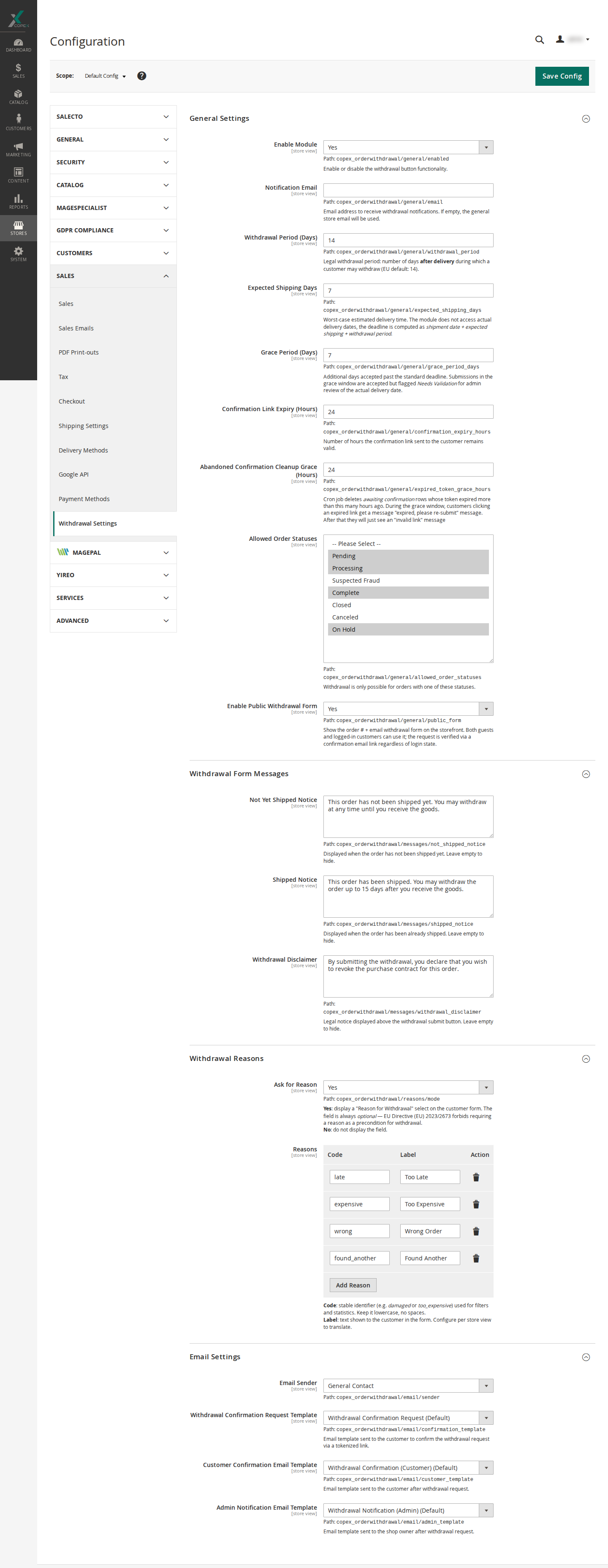
3.1 General Settings¶
- Enable Module — turns the entire feature on or off. When disabled, no withdrawal links appear in the storefront and the public form returns a generic "function not available" message.
- Notification Email — recipient of admin notification emails. If empty, the general store email is used.
- Withdrawal Period (Days) — the legal withdrawal window after delivery. Defaults to 14 (the EU minimum).
- Expected Shipping Days — worst-case time from shipment to delivery. The module does not see the actual delivery date, so the deadline is computed as shipment date + expected shipping days + withdrawal period.
- Grace Period (Days) — additional days during which submissions are still accepted after the standard deadline. Submissions in the grace window land in status Needs Validation so the operator can verify the actual delivery date manually.
- Withdrawal Period Starts From — chooses the anchor date the period is counted from: Shipment date (default) or Order status change date.
- Period Start Status — only used with Order status change date: the order status whose status-history change date starts the period (e.g. Ready for Review). When an order has not yet reached that status, the module falls back to the shipment date; an order that has not shipped remains withdrawable at any time.
- Confirmation Link Expiry (Hours) — how long the link in the confirmation email stays valid. Defaults to 24.
- Abandoned Confirmation Cleanup Grace (Hours) — once a confirmation token has expired, this is the additional window before the row is deleted by the cleanup cron. While the row exists, the customer clicking the expired link gets an "expired, please re-submit" message; once cleaned up they get a generic "invalid link" message instead.
- Allowed Order Statuses — withdrawal is only offered for orders whose status is in this list. The default set is installed by the module on first install (typically Pending, Processing, Complete).
- Enable Public Withdrawal Form — toggles the storefront form at
/withdrawal/request/for guests (visitors who are not logged in). The request is verified via the confirmation email link. - Enable Withdrawal Form for Registered Users — lets logged-in customers use the same order-number + email form at
/withdrawal/request/. Their email address is prefilled from their account and locked, and a Browse your order history… notice links them to their orders so they can find the one to withdraw. Default: No — when disabled, a logged-in customer who opens the form is redirected to their order history instead. The footer link to the form stays visible regardless of this setting.
3.2 Withdrawal Form Messages¶
Free-text notices shown above the withdrawal form. All are optional — leaving a field empty hides that notice.
- Form Intro Text — shown at the very top of the public withdrawal form. Unlike the plain-text notices below, it is rendered through the CMS filter, so Magento directives such as
{{store url=""}},{{config path=""}}or{{widget ...}}are resolved. Configurable per store view. - Not Yet Shipped Notice — shown when the order has no shipment yet. Useful to clarify that customers may withdraw at any time before the goods arrive.
- Shipped Notice — shown when the order has been shipped. A typical use is to remind the customer of the deadline.
- Withdrawal Disclaimer — legal text shown immediately above the submit button. Often used for the formal Widerrufsbelehrung wording.
3.3 Withdrawal Reasons¶
- Ask for Reason — controls whether customers see a Reason for Withdrawal select field. No hides the field; Optional shows it but allows blank submissions; Required rejects blank submissions with a localised message.
- Reasons — the list of reason codes and labels. Appears once Ask for Reason is set to Optional or Required.
The reasons table is a code/label editor with two columns:
- Code — a stable internal identifier (e.g.
damaged,wrong_size). Lower-case, no spaces. Codes are used for filtering and reporting in the admin grid and never shown to customers. - Label — the text the customer sees in the dropdown. Configurable per store view, so the same code can carry a different translation per locale.
When a customer submits, the row stores both the chosen code and the label exactly as the customer saw it. Removing or renaming a reason in the configuration later does not change historical rows — the snapshot keeps the email and the admin grid display correct even after the reason has been deleted.
3.4 Email Settings¶
- Email Sender — the configured store identity used as the From address.
- Withdrawal Confirmation Request Template — sent when the public form is submitted; contains the tokenized confirmation link.
- Customer Confirmation Email Template — sent to the customer once their withdrawal is recorded (immediately for the logged-in flow, after they confirm via email for the public form).
- Admin Notification Email Template — sent to the admin notification address. For the public form, this only fires after the customer has confirmed, so admins are not alerted to bot or typo submissions.
All three templates can be overridden per store view under Marketing → Email Templates.
3.5 reCAPTCHA¶
The public form is protected by Google reCAPTCHA, configured under Stores → Configuration → Security → Google reCAPTCHA Storefront → Storefront:
- Enable for Withdrawal Request Form — pick the captcha type (Invisible v3 recommended) or None to disable. Validation runs server-side, so disabling reCAPTCHA in the admin is sufficient (no template changes required).
The logged-in flow uses session authentication and never asks for a captcha.
4 Customer Flows¶
4.1 Logged-in Customer Flow¶
In My Account → My Orders, an extra column shows one of:
- a Withdrawal link while the period is active,
- Withdrawal submitted once a request has been recorded for that order,
- Period expired after the deadline.
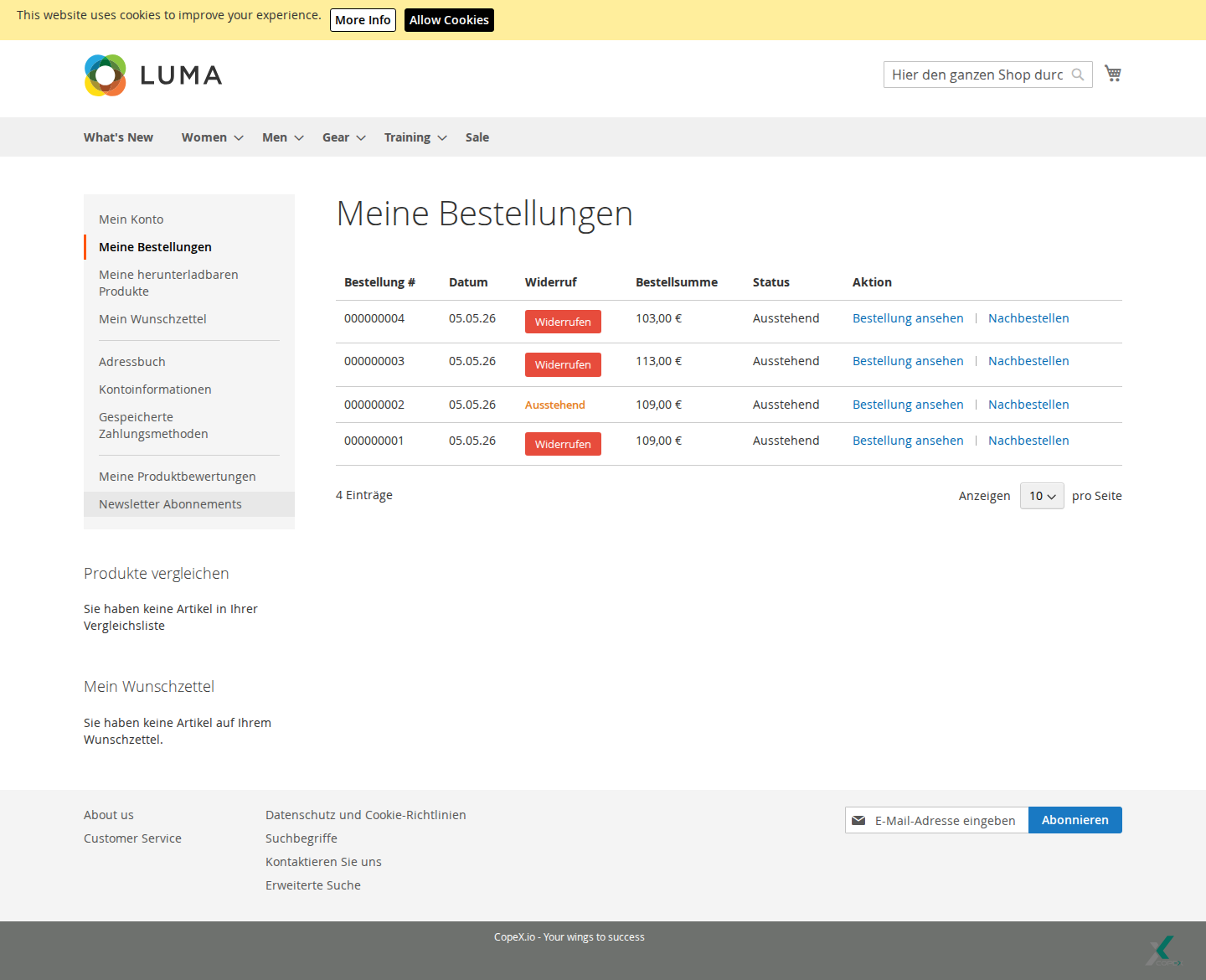
Clicking the link opens a withdrawal detail page with the order summary (number, date, status, total, items with SKU / quantity / price), the calculated deadline, the optional reason dropdown and a comment field.
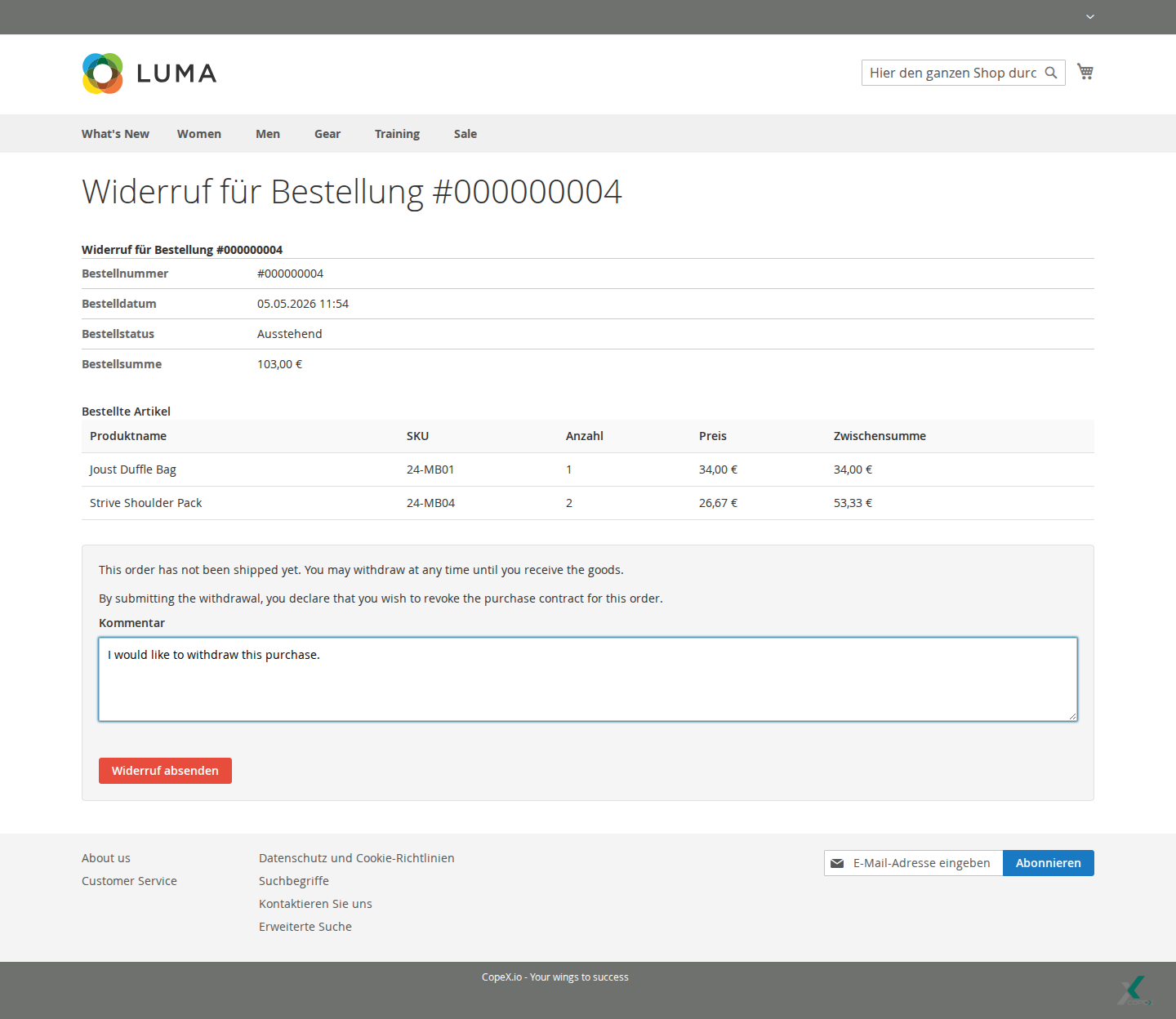
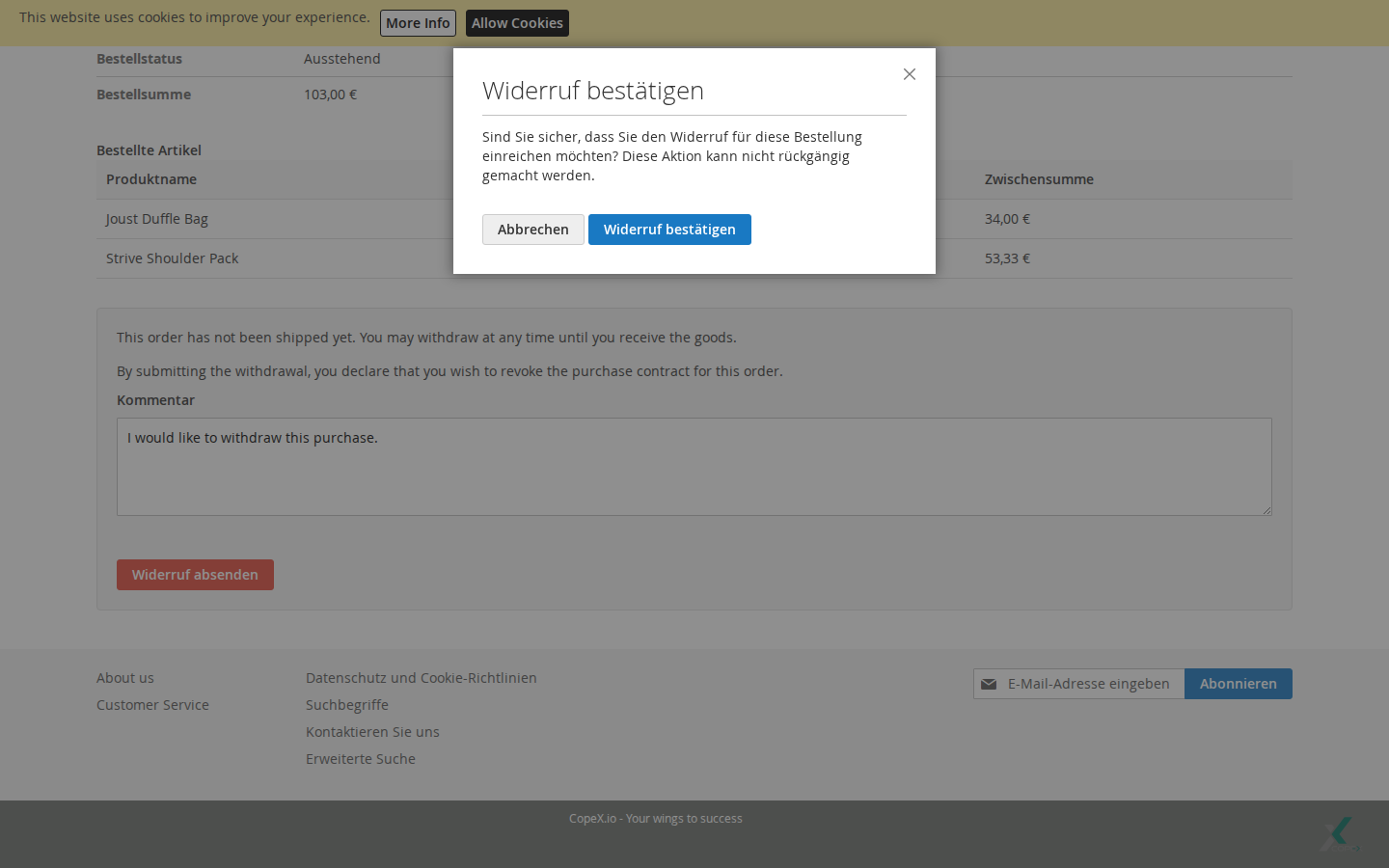
Submitting opens a JavaScript confirmation modal — clicking Yes, Submit Withdrawal records the request and triggers both notification emails immediately.
The customer is then redirected to a success page.
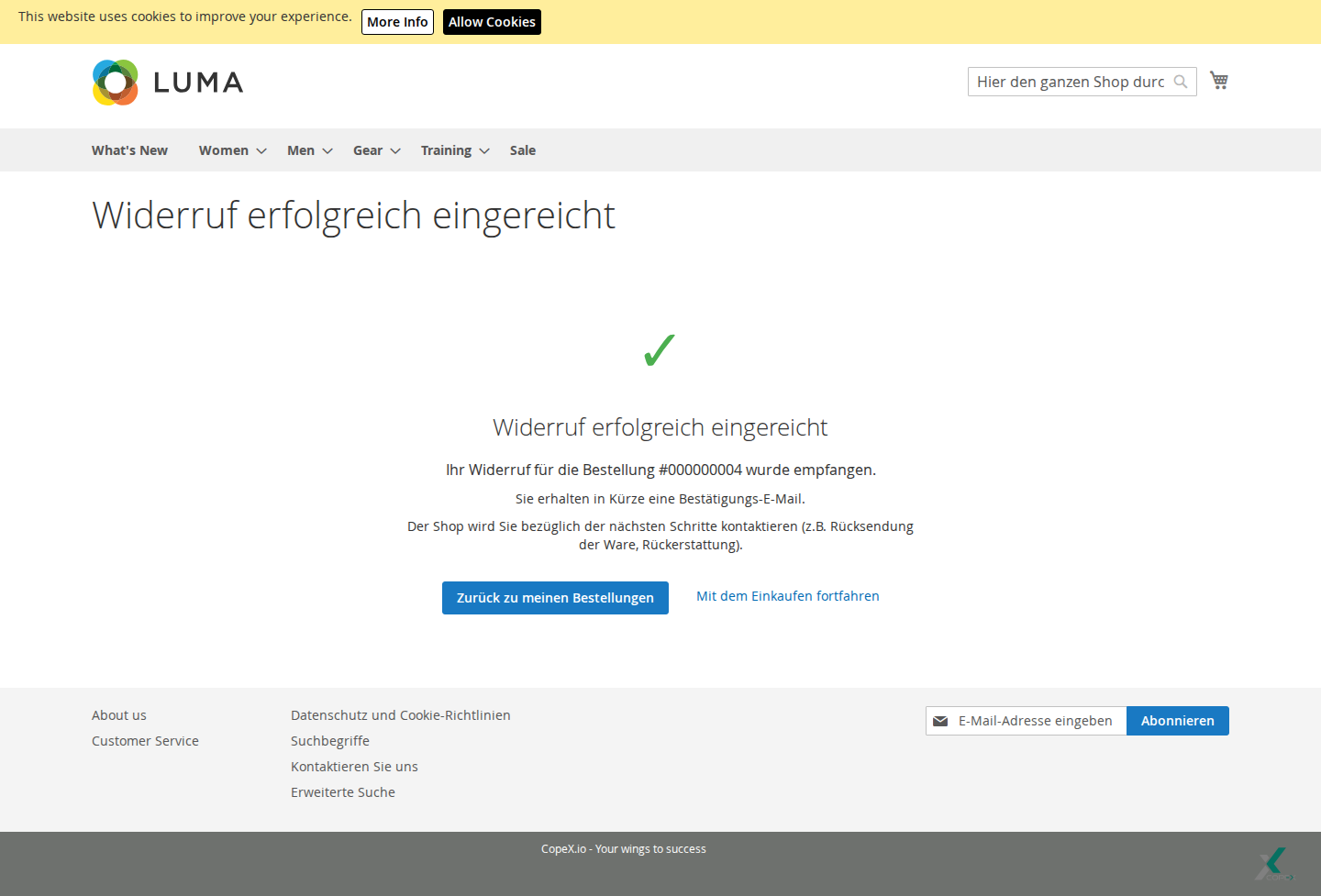
A notification email is sent to the customer immediately (no link to click — the request is already on file because the customer was authenticated):
4.2 Public Form Flow (double opt-in)¶
When Enable Public Withdrawal Form is on, the form is reachable at /withdrawal/request/. Typical places to link to it: the shop footer, the order confirmation email, or the legal Right of Withdrawal CMS page.
Custom URL for the form. To serve the form under your own path (e.g.
/widerrufor/returns) instead of/withdrawal/request/, add an internal URL rewrite — no code required:
- Go to Marketing → SEO & Search → URL Rewrites and click Add URL Rewrite.
- Create URL Rewrite For: Custom.
- Store: the store view the custom URL applies to.
- Request Path: your desired path, e.g.
widerruf(no leading slash).- Target Path:
withdrawal/request/index.- Redirect Type: No — this serves the form under the new path without an HTTP redirect, so the address bar keeps
/widerruf.- Save. The form is now reachable under your custom path (the original
/withdrawal/request/keeps working too).
The customer enters the order number, the email address used for the order, an optional comment and (depending on configuration) a reason.
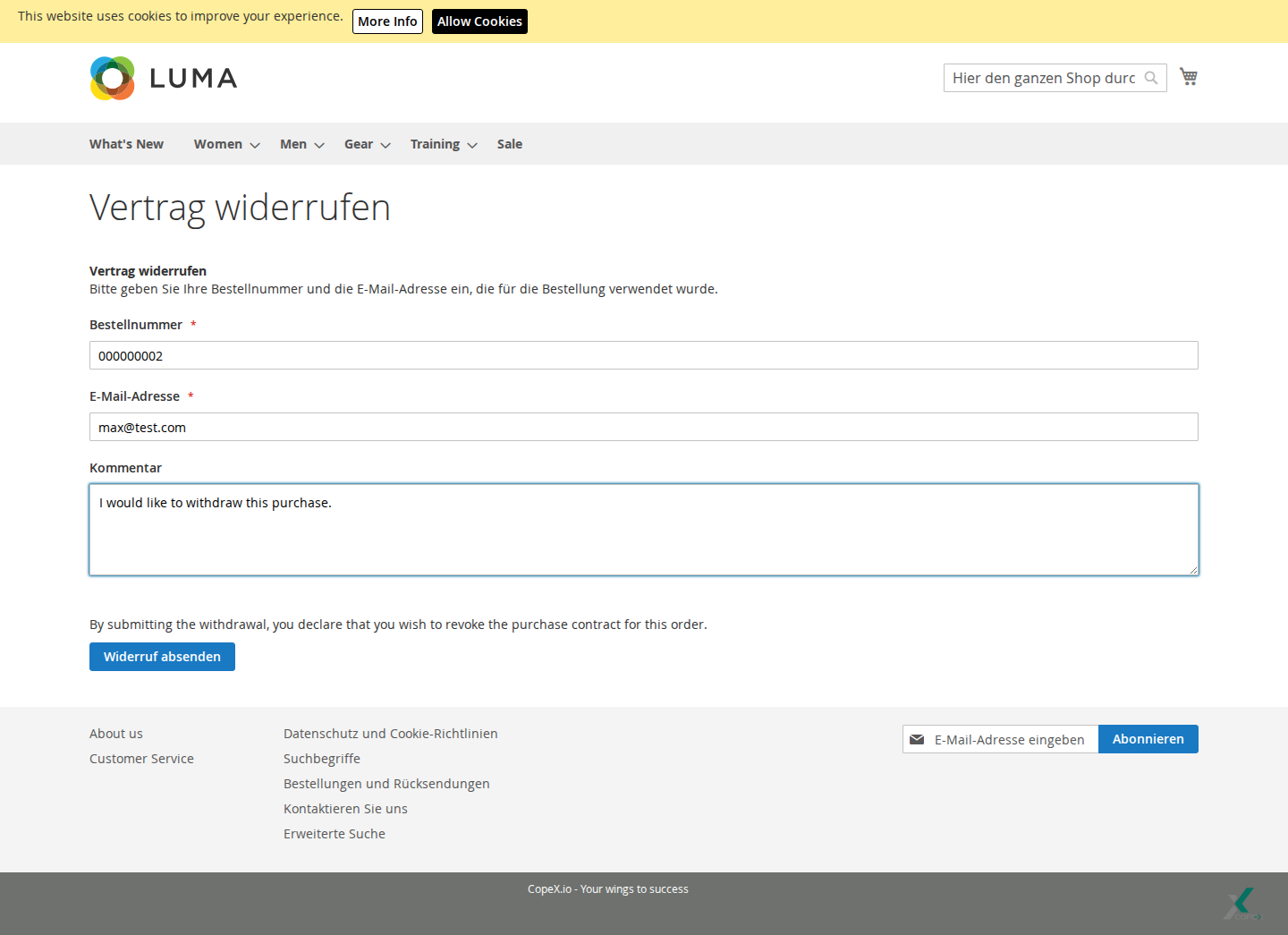
Logged-in customers. When Enable Withdrawal Form for Registered Users is on, logged-in customers can use this same form. Their email is prefilled from their account and cannot be edited, and a Browse your order history to find an order to withdraw notice links to their orders. Because they are already authenticated, no confirmation link is required — the request is filed immediately and the receipt + admin emails are sent right away, exactly like the order-page flow (§4.1). An order number that isn't one of their own orders is rejected immediately (no request is filed). When the setting is off, opening the form redirects them to their order history instead.
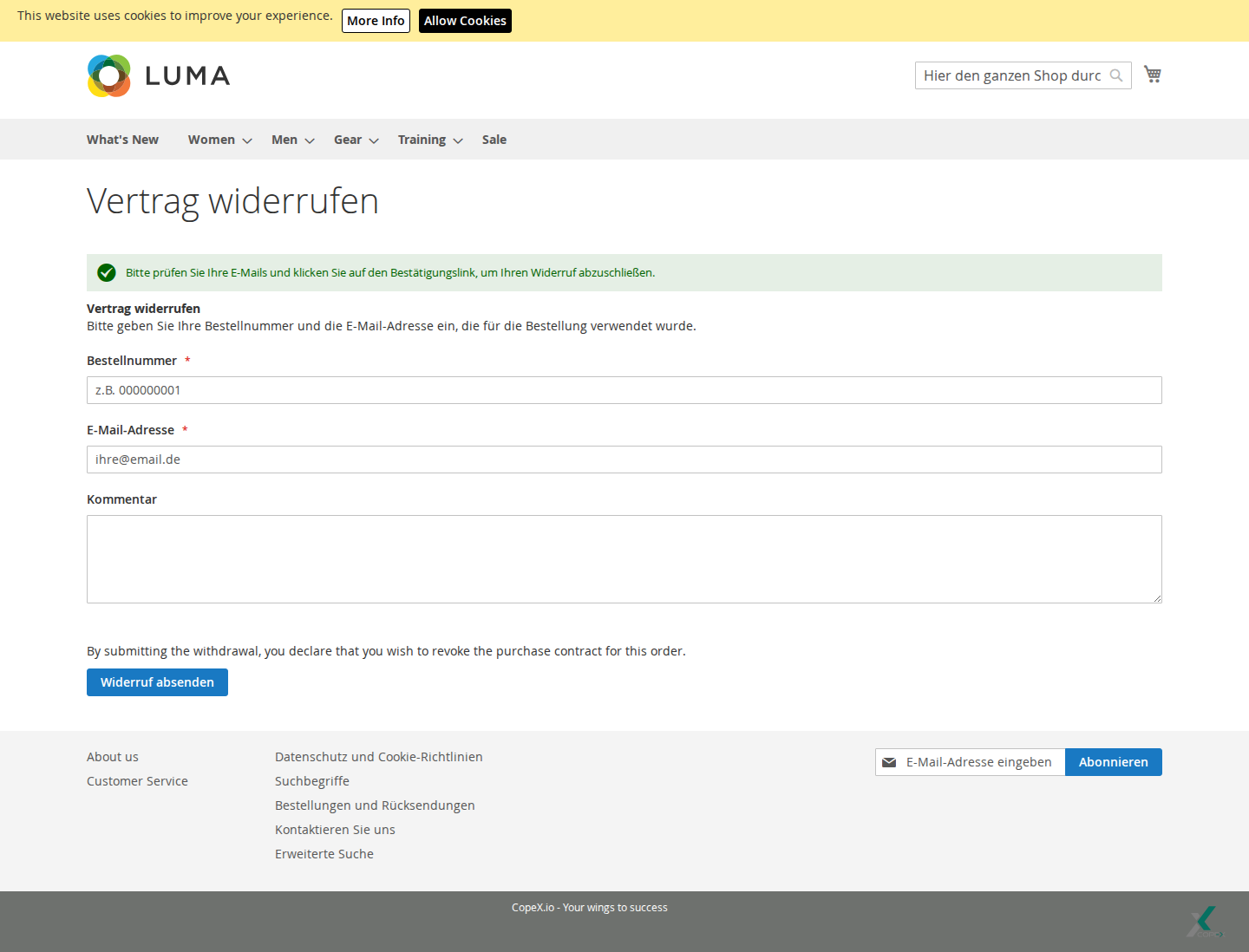
After passing reCAPTCHA, the shop:
- Stores the request with status Awaiting Confirmation.
- Sends a confirmation email to the supplied address with a tokenized link.
- Shows a generic "check your email" success message — regardless of whether the order or email actually exist (this prevents enumeration of customer data).
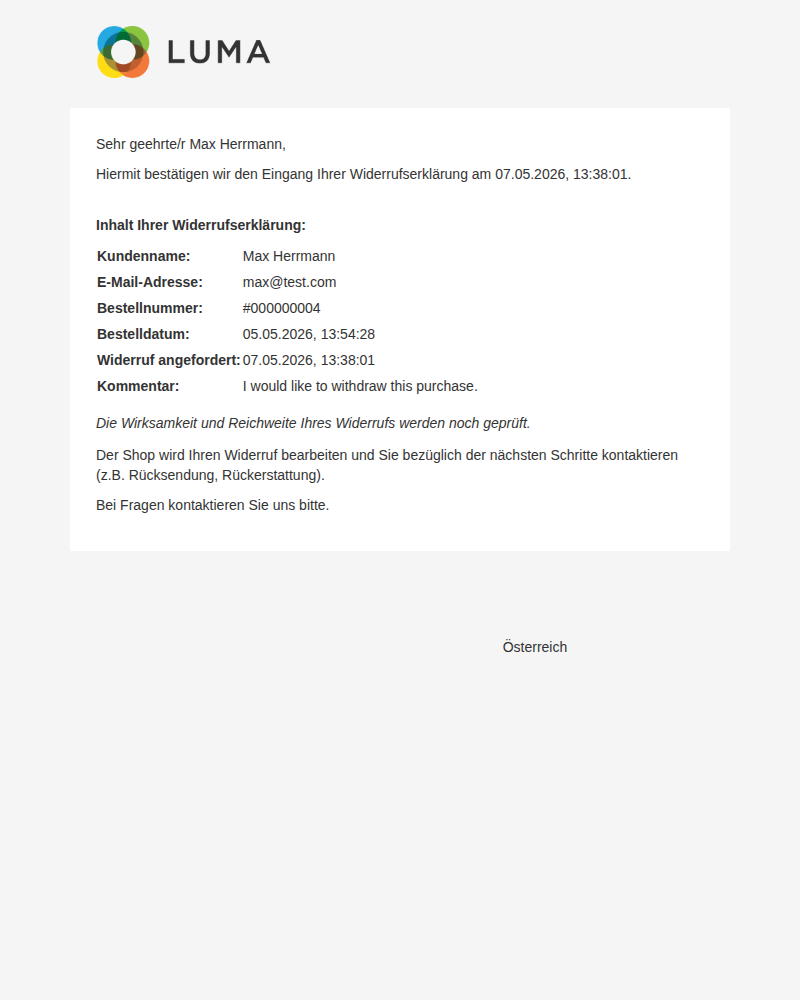
The confirmation email looks roughly like this (wording is template-customisable under Marketing → Email Templates):
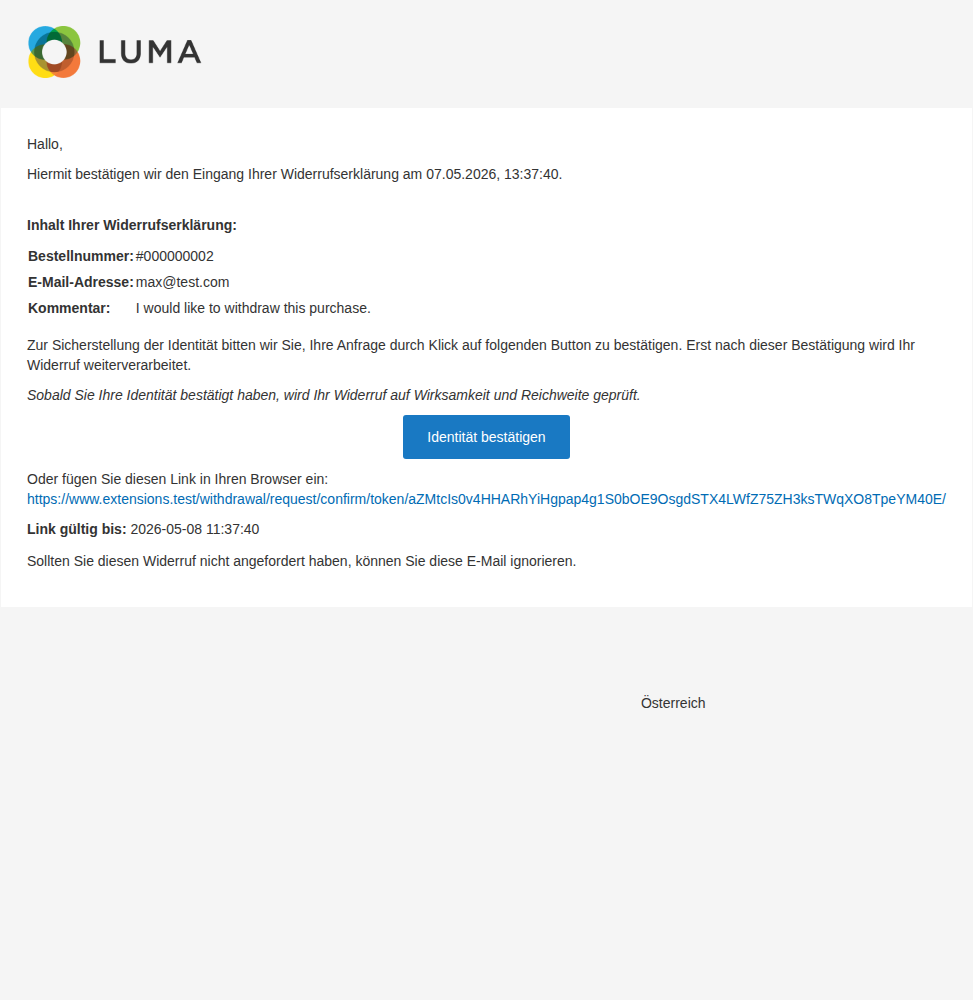
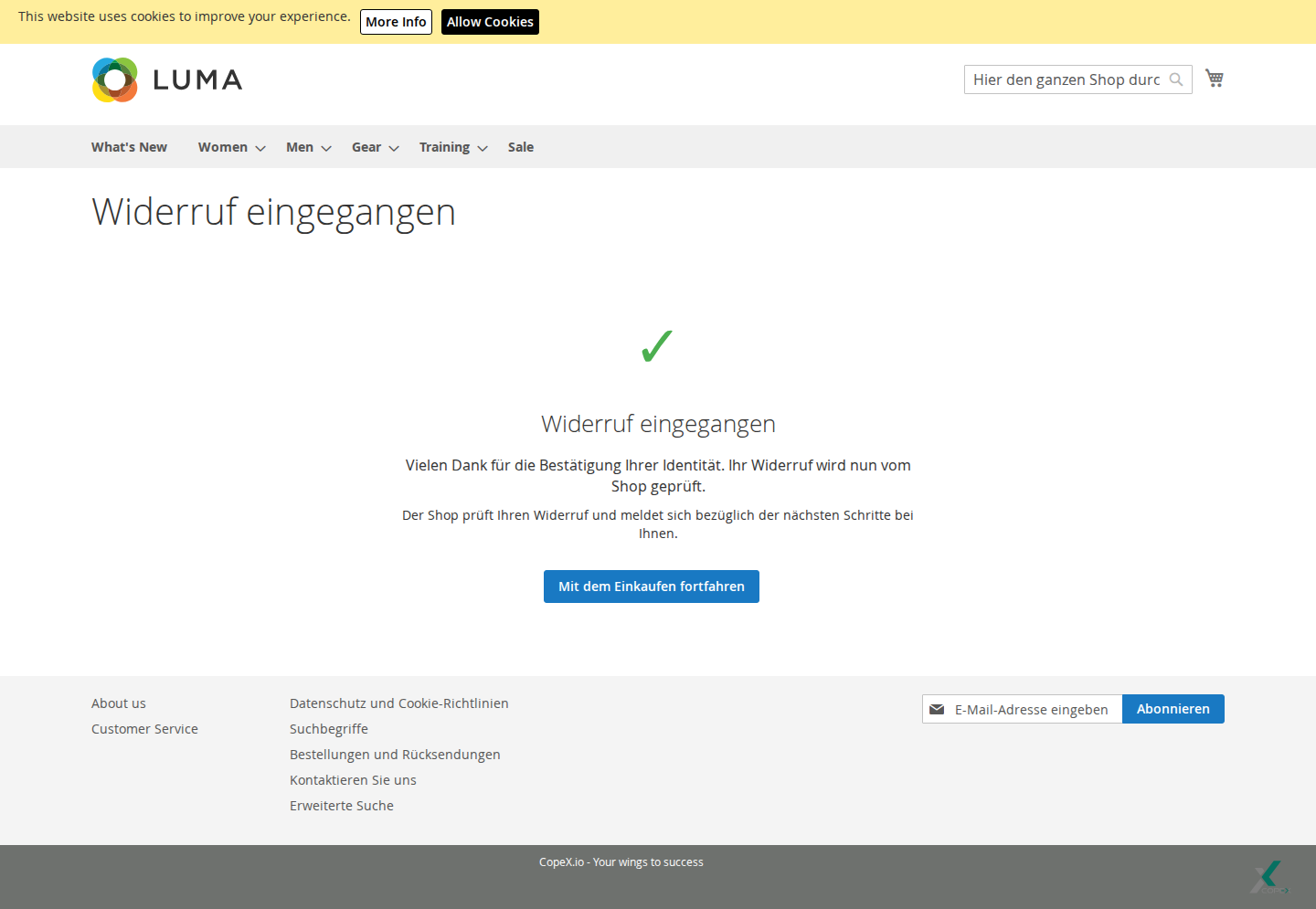
When the customer clicks the link in the email, a confirmation page opens that completes the request automatically: the withdrawal transitions to Pending (or Needs Validation if the order could not be resolved or the submission is in the grace window) and the admin notification is dispatched. Re-opening the link after it has already been confirmed simply shows the success page again — the action is idempotent. A link that never existed shows an "invalid" message; one whose validity window has passed shows an "expired" message.
Note. The link opens a confirmation page that completes automatically — the customer is forwarded to the success page with no extra click (a Confirm withdrawal request button is shown as a fallback when JavaScript is disabled). The page is designed to be robust against automated link-checkers in email clients.
If the customer re-submits the form for the same order while a confirmation is still pending, no duplicate row is created — instead the existing token is replaced and the email re-sent.
If the customer mistypes the order number, the request is still stored and the confirmation email is still sent. After confirmation it lands in the Needs Validation admin queue, where an operator can resolve it via the autocomplete editor (see Admin Overview).
5 Admin Overview¶
The grid is reached via Sales → Withdrawals.
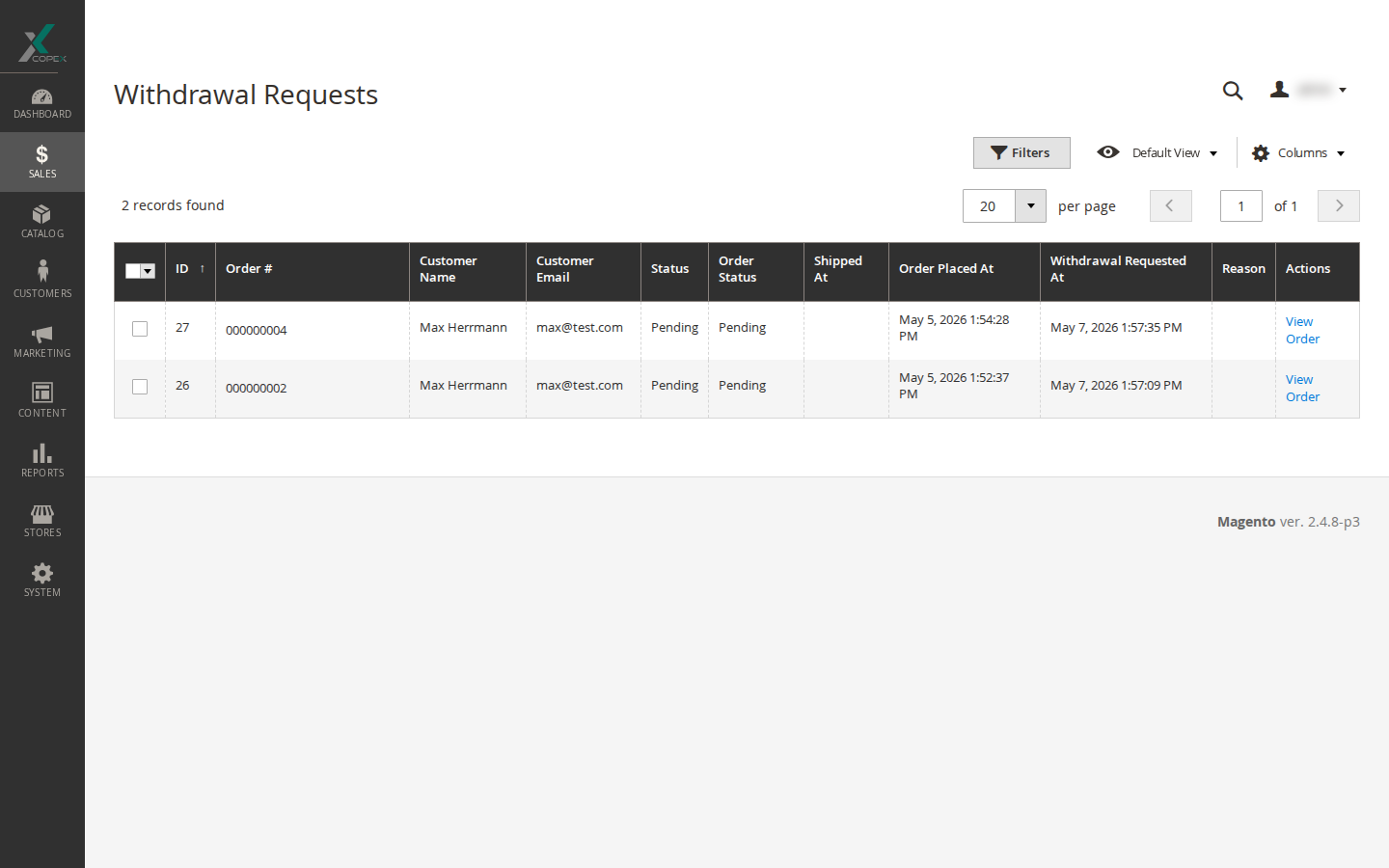
Columns¶
- ID — internal record identifier.
- Order # — the linked order's increment number. For unresolved rows, this column is replaced by an autocomplete search box (see below).
- Customer Name / Customer Email — the contact details captured at submit.
- Status — the withdrawal status. Inline-editable directly from the grid.
- Order Status — the status of the linked order at the time of submission.
- Shipped At / Order Placed At / Withdrawal Requested At — date filters for reporting.
- Comment — the customer's free-text comment (hidden by default, can be shown via the column picker).
- Reason — the snapshot label of the chosen withdrawal reason. Text-filterable. Empty for submissions made when Ask for Reason was No or Optional and the customer left it blank.
- Actions — a View Order link when the row has an order assigned, otherwise a muted Order not assigned hint.
Inline status editing¶
Click any row's status cell to change it directly in the grid (no separate edit page). Permitted transitions: Pending → Confirmed / Rejected; Needs Validation → Pending (after assigning an order) → Confirmed / Rejected.
Resolving unassigned rows¶
When the customer's order number could not be matched at confirmation time, the Order # column shows an autocomplete search box. Typing in it searches the orders belonging to the row's customer_email (excluding orders that already have a withdrawal). Picking an order and confirming the popover assigns it, runs the eligibility check, and transitions the row to Pending.
Cleanup of abandoned requests¶
A daily cron job (runs at 02:00 server time) deletes Awaiting Confirmation rows whose token has expired more than the Abandoned Confirmation Cleanup Grace hours ago. This keeps the grid free of bot or typo submissions that never went through the email confirmation step.
6 Email Templates¶
| Template | When it is sent |
|---|---|
| Withdrawal Confirmation Request | Public form: immediately on submit. Serves as the legal Eingangsbestätigung (receipt confirmation) AND carries the identity-verification link. Body contains only data the customer typed (order #, email they entered, comment, reason). |
| Customer Confirmation | Logged-in flow: immediately on submit — this email is the legal Eingangsbestätigung, with full declaration content (customer name, items, comment, reason). Public form: after the customer clicks the verification link — identity-verified processing notification. |
| Admin Notification | Logged-in flow: immediately on submit. Public form: only after the customer confirms via the email link. |
All templates receive the order number, customer name, customer email, the withdrawal date (locale-formatted in store-local timezone) and the storefront name. The customer and admin templates additionally receive the order date. The confirmation-request template additionally receives the confirmation URL and its expiry timestamp.
All emails are rendered in the language of the store view the withdrawal originated from — this is stored when the request is created. This also applies to the admin-triggered approval and rejection emails: they keep using the customer's language rather than the backend language.
When the Reason for Withdrawal feature is enabled, all three templates also receive the reason label as it was shown to the customer. The default templates render a Reason: … row only when a reason is present, so submissions made with the field disabled or skipped keep clean output.
To customise wording or branding, override the relevant template under Marketing → Email Templates and assign it under Email Settings.
Public flow: why two emails?¶
For the public form, the customer receives two emails, and the legal weight is split deliberately:
- First email — sent immediately at submit time (
Withdrawal Confirmation Requesttemplate). This is the legal Eingangsbestätigung. It confirms receipt of the customer's withdrawal declaration with date and time, lists exactly what the customer typed, states that the validity is still being reviewed, and asks the customer to confirm their identity via a tokenized link. - Second email — sent only after the customer clicks the link (
Customer Confirmationtemplate, post-verification variant). This confirms identity has been verified, attaches the order-derived details (customer name, items), and informs the customer that the withdrawal is now being reviewed by us.
The first email cannot include order-derived data (e.g. real customer name, item list) because, before identity verification, the typed email may not actually belong to the order — including those fields would leak personal data to a wrong recipient. The post-verification email fills in the missing context once the recipient has been confirmed.
When customising the public-flow templates, do not move order-derived data from the second email into the first. The split is a deliberate privacy boundary.
7 Withdrawal Eligibility¶
A withdrawal request is offered to (and accepted from) a customer based on two factors: the order's status, and the date.
Status check¶
The order's current status must be in Allowed Order Statuses. Orders in any other status (e.g. Cancelled, On Hold, Closed) never show the withdrawal link, and direct submissions to the controller are rejected. If the configured list is empty, no order is eligible — verify the list after a fresh install if customers report missing links.
Date check¶
The standard deadline is calculated as:
Latest shipment date + Expected Shipping Days + Withdrawal Period (Days)
For orders without any shipment, the period has not started yet and the customer can withdraw at any time. Once the order is shipped, the count begins.
If Withdrawal Period Starts From is set to Order status change date, the anchor is instead the date the order reached the configured Period Start Status. When that status has not been set, the calculation falls back to the latest shipment date (and an unshipped order can still be withdrawn at any time).
The grace deadline extends this by Grace Period (Days). Submissions are accepted in three zones:
| Zone | Condition | Result on submit |
|---|---|---|
| Within the standard period | now ≤ standard deadline | Status set to Pending |
| In the grace window | standard deadline < now ≤ standard deadline + grace | Status set to Needs Validation — the operator must verify the actual delivery date |
| Past the grace window | now > standard deadline + grace | Submission refused; storefront shows Period expired |
The grace window exists because the module has no access to the actual delivery date. A customer who received the goods late from the carrier could legitimately still be inside the legal withdrawal period even though the shipment date plus the expected-shipping estimate has elapsed. Needs Validation signals: "this is outside the system's automatic window — confirm with the carrier's tracking before approving or rejecting."
For the public form, the date check is only performed when the order number resolves to a real order. Otherwise the row is created in Awaiting Confirmation and an operator handles eligibility manually after the customer has confirmed.
Recommended configuration¶
The legal withdrawal period starts when the consumer takes possession of the goods (Inbesitznahme), not when the merchant ships them. Magento does not record actual delivery dates, so the module estimates: shipment + Expected Shipping Days. To stay on the safe side legally — never reject a withdrawal that is still legally valid — configure these two fields generously:
- Expected Shipping Days — set to the worst-case carrier transit time for your slowest delivery option (often 5–7 days for domestic, 10+ for international). Underestimating means the standard deadline expires before the customer's legal period actually ends.
- Grace Period (Days) — at least 7 days, ideally matching your longest carrier delay. Submissions in the grace window are accepted and flagged Needs Validation so the operator can check the actual delivery date with the carrier before deciding.
If both values are set generously, the only requests that ever land in Period expired are clearly outside the legal window. Erring on the side of inclusion is the correct posture: a few extra reviews cost less than missing a legal deadline.
8 Status Lifecycle¶
| Status | Meaning |
|---|---|
| Awaiting Confirmation | Public form submitted; waiting for the customer to click the email link. |
| Pending | Confirmed by the customer (or submitted by a logged-in customer); awaiting admin authorization. |
| Needs Validation | Either the submission is in the grace window past the standard deadline, or the order number could not be auto-resolved. The operator must verify before progressing. |
| Confirmed | The operator has authorised the withdrawal. |
| Rejected | The operator has refused the withdrawal. |
Typical transitions:
- Public-form submit → Awaiting Confirmation
- Email link clicked, order resolved, within standard period → Pending
- Email link clicked, order resolved, in grace zone → Needs Validation
- Email link clicked, order not resolved → Needs Validation
- Logged-in customer submit, within standard period → Pending (no email confirmation step)
- Logged-in customer submit, in grace zone → Needs Validation
- Operator assigns an order on a Needs Validation row → Pending
- Operator authorises / refuses → Confirmed / Rejected
When a request reaches Confirmed or Rejected, an order-history comment is added automatically.
9 Troubleshooting¶
"The withdrawal function is currently not available."¶
Enable Module is set to No, or the Allowed Order Statuses list is empty. Verify both under Withdrawal Settings → General Settings.
Customers report missing withdrawal links¶
Causes, in decreasing order of frequency:
- The order's status is not in Allowed Order Statuses.
- The order is past the grace deadline (Period expired shown instead of the link).
- A withdrawal request already exists for that order (link replaced by Withdrawal submitted).
- The module has been disabled.
Public form returns "Could not process your request."¶
The form deliberately shows the same generic message for every failure path (missing fields, mismatched email, already-existing request, invalid order number) to prevent attackers from probing the customer database. To diagnose, check the row in the admin grid (a row is still created even for some rejection paths) and the system log.
Confirmation email never arrives¶
Check the configured store email transport, the admin user's mailbox quarantine, and the Email Sender identity. The link is logged in var/log only at debug level, so increase logging verbosity before reproducing if needed.
Confirmation link says "expired" or "invalid"¶
Expired — the confirmation token has elapsed beyond Confirmation Link Expiry (Hours) but is still within the cleanup grace. Customer should re-submit the form; the existing row is reused and a new token issued.
Invalid — the row has been removed by the cleanup cron, or the link has already been used. Customer should re-submit the form.
Admin grid shows a row with no order number¶
A public-form submission whose order number could not be auto-resolved. Use the autocomplete editor in the Order # column to search the customer's orders by their email, pick the correct one, and confirm. The eligibility check runs at that point.
A reason no longer appears in the dropdown but still shows in old rows¶
This is intentional. The label is snapshotted at submit time, so removing or renaming a reason in Withdrawal Reasons does not alter historical rows. Operators always see what the customer saw.
10 Compliance Obligations¶
EU Directive (EU) 2023/2673 (mandatory by 19 June 2026) requires more than just the technical button. The module ships the technical part; the following operator-side actions complete the legal compliance and must be performed:
10.1 Information obligation (Informationspflicht)¶
The consumer must be informed that the withdrawal function exists, where it is, and what it does. The module does not auto-add storefront links. Operators must:
- Add a visible link to
/withdrawal/request/(the public form) in at least one prominent place — typically the shop footer and / or the legal information menu. - Reference the URL in the order-confirmation email, ideally near the Right of Withdrawal section.
- Mention the function on the existing Right of Withdrawal (Widerrufsbelehrung) CMS page.
10.2 Update the AGB §5 Widerrufsbelehrung¶
The legal Widerrufsbelehrung text must include a reference to the online withdrawal function. Recommended wording (from the supplied legal text — adapt company name and URL):
"§5 Widerrufsbelehrung
Sie haben das Recht, binnen vierzehn Tagen ohne Angabe von Gründen diesen Vertrag zu widerrufen. […] Sie können Ihr Widerrufsrecht auch online unter [URL of /withdrawal/request/] ausüben. Wenn Sie diese Online-Funktion nutzen, übermitteln wir Ihnen auf einem dauerhaften Datenträger (z. B. durch eine E-Mail) unverzüglich eine Eingangsbestätigung mit Informationen zum Inhalt der Widerrufserklärung sowie dem Datum und der Uhrzeit ihres Eingangs. […]"
Use only the official statutory wording (the German legislator's template). Do not add own embellishments — incorrect or missing Widerrufsbelehrung extends the withdrawal right by 12 months and 14 days.
10.3 Update the Datenschutzerklärung¶
The privacy policy must mention that personal data (name, email) is processed for handling withdrawals via the electronic function. Add a sub-bullet under Erfüllung vertraglicher oder vorvertraglicher Pflichten (Art 6 Abs 1 lit b DSGVO):
"Ihre Daten werden für die Anbahnung und Abwicklung von Verträgen mit Ihnen und der Bearbeitung Ihrer Aufträge verarbeitet. Die Verarbeitung erstreckt sich dabei auch auf die Bearbeitung von Widerrufen über unsere elektronische Widerrufsfunktion."
10.4 Operator training¶
Support staff must understand the legal distinction between:
- Eingangsbestätigung (receipt confirmation) — the email sent after submission. Confirms receipt only, not legal effect.
- Widerruf bestätigt / abgelehnt (withdrawal approved / refused) — the merchant's legal decision after reviewing validity and scope.
Confusing the two — telling a customer "your withdrawal is confirmed" when only receipt has been registered — could be interpreted as a binding statement and limit later ability to refuse on validity grounds.
10.5 Penalties for non-compliance¶
Failure to provide the withdrawal button correctly is an Ordnungswidrigkeit under German law:
- Companies with annual revenue over €1.25M: fines up to 4 % of annual revenue.
- Smaller companies: fines up to €50,000.
- A defective implementation can also constitute unfair competition (Wettbewerbsverstoß) and trigger Abmahnungen by industry associations.
10.6 Quick checklist¶
Before going live with the module:
- [ ] Enable Module = Yes; Allowed Order Statuses contains the right list
- [ ] Expected Shipping Days and Grace Period (Days) set generously (see §7)
- [ ] Enable Public Withdrawal Form = Yes
- [ ] reCAPTCHA configured for Withdrawal Request Form (or explicitly disabled)
- [ ] Notification Email set to the address support staff actually monitor
- [ ] Footer / menu link to
/withdrawal/request/published - [ ] AGB §5 Widerrufsbelehrung updated with the online URL
- [ ] Datenschutzerklärung updated with the processing-purpose paragraph
- [ ] Support staff briefed on Eingangsbestätigung ≠ Widerruf bestätigt