EmailPaymentAndShippingInstructions — Shipping and Payment Instructions in Order Emails
Extension for Magento 2
User Guide
CopeX GmbH
Web: https://copex.io
Email: office@copex.io
Table of Contents
| Section | Page |
|---|---|
| 1 Requirements | 2 |
| 2 Installation | 2 |
| 3 Configuration | 3 |
| 4 Email Template Integration | 5 |
| 5 Troubleshooting | 6 |
1 Requirements
- Magento 2.4.7 – 2.4.9
- PHP 8.3 – 8.5
- Access to Magento email templates (for integration)
2 Installation
Via Composer
composer require copex/module-order-email-payment-and-shipping-instructions
php bin/magento module:enable CopeX_EmailPaymentAndShippingInstructions
php bin/magento setup:upgrade
php bin/magento cache:flush
3 Configuration
The module configuration is located in the Magento 2 admin panel under Stores > Configuration > Sales > Sales Emails > Order.
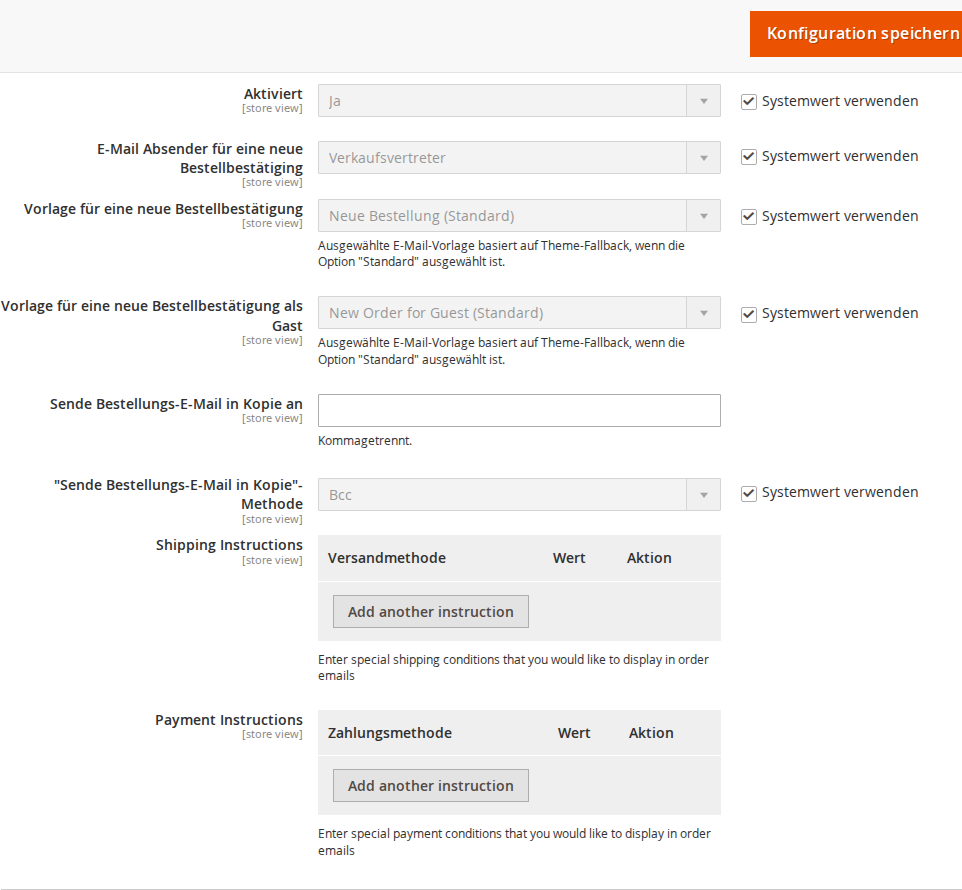
3.1 Shipping Instructions
Navigate to Stores > Configuration > Sales > Sales Emails > Order > Shipping Instructions.
The configuration field shows a table where you can define a custom instruction text for each shipping method.
Table structure:
| Column | Description |
|---|---|
| Shipping Method | The shipping method the instruction applies to (e.g. flatrate_flatrate, freeshipping_freeshipping) |
| Value | The text to display (HTML and CMS template directives allowed) |
Use the Add Row button to add further shipping method instructions.
Tip: You can find the shipping method code under Stores > Configuration > Sales > Delivery Methods for each method.
3.2 Payment Instructions
Navigate to Stores > Configuration > Sales > Sales Emails > Order > Payment Instructions.
This configuration field works the same way as shipping instructions, but applies to payment methods.
Table structure:
| Column | Description |
|---|---|
| Payment Method | The payment method the instruction applies to (e.g. checkmo, banktransfer, klarna_kp) |
| Value | The text to display (HTML and CMS template directives allowed) |
Note on content input:
The "Value" field can contain:
- Plain text:
Payment by bank transfer. IBAN: AT12 3456 7890 1234 5678 - HTML:
<strong>Bank transfer:</strong><br>IBAN: AT12 3456 7890 1234 5678 - CMS static blocks:
{{block class="Magento\Cms\Block\Block" block_id="payment-info-bank"}}
4 Email Template Integration
4.1 Minimal Integration
Add the following block code to your order confirmation email template (Marketing > Communications > Email Templates):
{{block class='CopeX\\EmailPaymentAndShippingInstructions\\Block\\Template'}}
This block automatically shows both payment and shipping instructions, in the order: payment instructions first, then shipping instructions.
4.2 Advanced Integration
For more control over placement and content, parameters can be set directly on the block:
{{block class='CopeX\\EmailPaymentAndShippingInstructions\\Block\\Template'
  template='CopeX_EmailPaymentAndShippingInstructions::email/instructions.phtml'
  show='payment'
  scope='website'
  filter='1'
}}
4.3 Parameter Reference
| Parameter | Possible Values | Default | Description |
|---|---|---|---|
show |
all, payment, shipping |
all |
Which instructions to display |
scope |
store, website |
store |
Configuration scope for instruction lookup |
filter |
0, 1 |
0 |
Process CMS template directives in the content |
template |
path to PHTML file | default template | Use an alternative template |
4.4 Separate Blocks for Different Positions
To display payment and shipping instructions at different locations within the email:
{{block class='CopeX\\EmailPaymentAndShippingInstructions\\Block\\Template' show="payment"}}

[... additional email content ...]

{{block class='CopeX\\EmailPaymentAndShippingInstructions\\Block\\Template' show="shipping"}}
4.5 Website-Level Instructions
When instructions are configured at website scope (instead of store scope), use:
{{block class='CopeX\\EmailPaymentAndShippingInstructions\\Block\\Template' scope='website'}}
5 Troubleshooting
-
Instructions are not shown in the email — Make sure the block code has been correctly inserted into the email template. Check under Marketing > Communications > Email Templates which template is used for order confirmations.
-
Wrong instruction for a shipping method — The method code in the configuration field must exactly match the code in Magento. Verify the code under Stores > Configuration > Sales > Delivery Methods.
-
CMS blocks are not rendered — Make sure the
filter='1'parameter is set on the block tag. Without it, CMS template directives are output as plain text. -
Instructions appear for all shipping methods — Review the shipping method codes in the configuration. The module matches the order's method code against the configured codes; an empty or incorrect code field can cause unintended matches.
-
Email shows HTML source code — The module outputs content unescaped to support HTML. Make sure the email template being used renders HTML correctly.
License
Proprietary — CopeX GmbH. One license per production Magento instance.