EstimateShippingOnProduct — Shipping Cost Estimation on Product Pages
Extension for Magento 2
User Guide
CopeX GmbH
Web: https://copex.io
Email: office@copex.io
Table of Contents
| Section | Page |
|---|---|
| 1 Requirements | 2 |
| 2 Installation | 2 |
| 3 Configuration | 2 |
| 4 How It Works | 5 |
| 5 Troubleshooting | 5 |
1 Requirements
- Magento 2.4.7 – 2.4.9
- PHP 8.3 – 8.5
- Compatible with Luma and Hyvä themes
- At least one active shipping method must be configured
2 Installation
Via Composer
composer require copex/module-estimate-shipping-on-product
php bin/magento module:enable CopeX_EstimateShippingOnProduct
php bin/magento setup:upgrade
php bin/magento cache:flush
3 Configuration
The module configuration is located in the Magento 2 admin panel under Stores > Configuration > Catalog > Catalog > Shipping on Product.

3.1 Activation
- Enable Module — Enables or disables the entire shipping cost estimation on product pages. When disabled, the shipping block is not shown on product pages.
3.2 Country Popup
- Show more countries popup — When enabled, a "Calculate shipping for other countries" link appears on the product page, which opens a popup. In the popup, visitors can select a different country and calculate shipping costs for it.
3.3 Extra Shipping Time
- Extra Shipping Time — Allows configuring delivery time information per shipping method. The entries are shown on the product page next to the respective shipping price.
Table structure:
| Column | Description |
|---|---|
| Shipping Method Code | The shipping method code (e.g. flatrate_flatrate, freeshipping_freeshipping) |
| Value | The delivery time text to display (e.g. "Delivery in 2-3 business days") |
Example:
| Shipping Method Code | Value |
|---|---|
flatrate_flatrate |
Delivery in 3-5 business days |
matrixrate_matrixrate |
Express delivery next business day |
3.4 Additional Price Box (Luma)
- Use additional price box — On Luma themes, shows an additional price box below the main price box, displaying the product price including shipping costs. This option is intended for Luma-based themes only.
3.5 Apply Shipping Method to Cart
- Set Shipping for Cart — When enabled, the shipping method selected by the customer on the product page is automatically transferred to checkout. The customer does not need to select the shipping method again during checkout.
4 How It Works
4.1 Shipping Cost Calculation
The module shows a shipping cost estimation block on the product page:
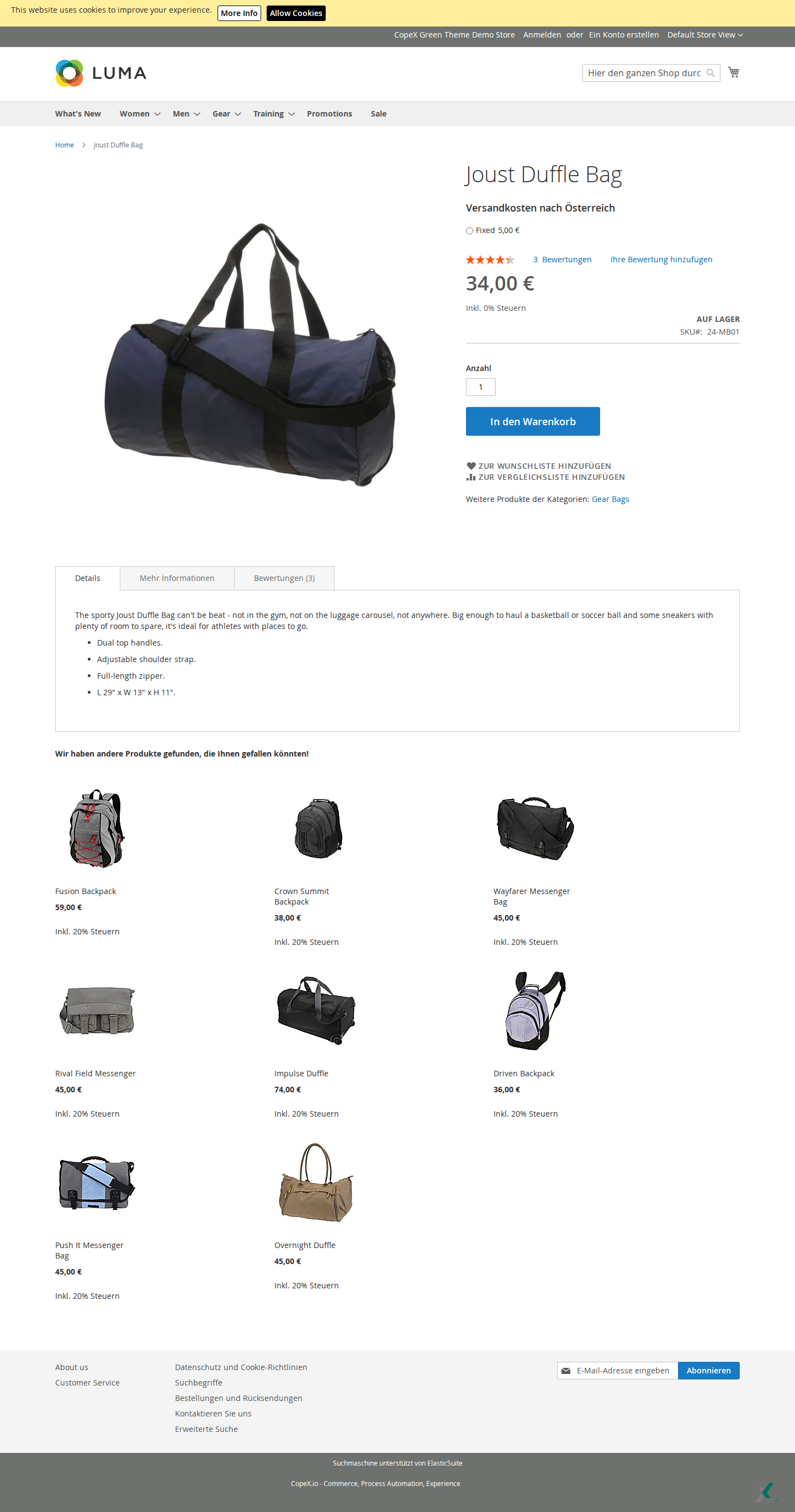
In the frontend view, the shipping cost estimation is displayed directly on the product detail page, below or near the price/purchase area. Visitors see the available shipping methods with their prices and optional delivery time texts. If no shipping method is available for a product or the selected country, either an empty list or an appropriate notice appears in that location.
- By default, shipping costs are calculated for the store's default delivery country.
- The block lists all available shipping methods with their prices.
- Configured delivery time information is optionally shown next to the price.
- The customer can select a shipping method.
Technical flow:
- The module creates a temporary internal cart with the product.
- Magento's shipping rate engine calculates rates for the temporary cart.
- The calculated rates are displayed to the customer.
4.2 Popup for Other Countries
When the country popup is enabled, a link appears on the product page. When the visitor clicks it, a popup opens:
- In the popup, the visitor can select a destination country from a dropdown.
- After selecting a country, shipping costs for that country are calculated and shown.
- The calculation happens via AJAX without a page reload.
4.3 Cart Integration
When Set Shipping for Cart is enabled:
- When the customer selects a shipping method on the product page, it is saved in the session.
- When proceeding to checkout, the saved shipping method is automatically applied to the cart.
- Checkout starts with the already-selected shipping method.
5 Troubleshooting
-
Block is not shown on the product page — Make sure the module is enabled. Check that at least one shipping method is configured and active for the store.
-
No shipping methods are displayed — The module only calculates shipping costs for shippable products. Make sure the product is not marked as "virtual" or "downloadable". Also check that shipping methods are active for the destination country.
-
Incorrect shipping costs are displayed — The calculation is based on product weight. Make sure the correct weight is set on the product.
-
Popup does not open — Make sure JavaScript is enabled in the browser and no JavaScript errors appear in the browser console.
-
Shipping method is not applied in checkout — Make sure the Set Shipping for Cart option is enabled and the cache has been flushed.
-
Discounted price is not shown for Hyvä — From version 1.0.2, the module supports discounted products in Hyvä. Make sure the current version is installed.
License
Proprietary — CopeX GmbH. One license per production Magento instance.