AutoInvoice — Klarna Auto Invoice
Extension for Magento 2
User Guide
CopeX GmbH
Web: https://copex.io
Email: office@copex.io
Table of Contents
| Section | Page |
|---|---|
| 1 Requirements | 2 |
| 2 Installation | 2 |
| 3 Configuration | 2 |
| 4 How It Works | 3 |
| 5 Troubleshooting | 4 |
1 Requirements
- Magento 2.4.7 to 2.4.9
- PHP 8.3 to 8.5
- Klarna Payments as an active payment method (method code:
klarna_kp) - The
copex/module-coremodule must be installed
2 Installation
Via Composer
composer require copex/auto-invoice-module
php bin/magento module:enable CopeX_AutoInvoice
php bin/magento setup:upgrade
php bin/magento cache:flush
After installation, the module is disabled by default and must be enabled in the configuration.
3 Configuration
The module configuration is located in the Magento 2 admin panel under Stores > Configuration > Sales > Sales > Order Cron Settings.
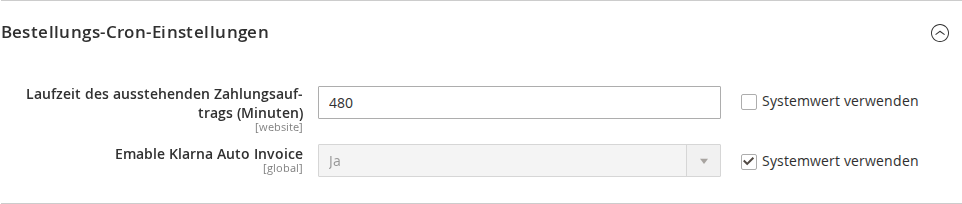
3.1 General Settings
Navigate to Stores > Configuration > Sales > Sales > Order Cron Settings.
- Emable Klarna Auto Invoice — Enables or disables automatic invoice creation for Klarna orders. When this option is disabled, no automatic invoices are created and the cron job exits immediately without processing any orders.
4 How It Works
4.1 Cron Job
The module registers a cron job (copex_autoinvoice_invoicegenerate) that runs every 5 minutes. The cron job iterates over all orders with the status "Processing" and automatically creates invoices for Klarna payments.
Processing logic per order:
- If the module is disabled: skip processing.
- If the order has already been fully invoiced: skip (already completed).
- If the payment method is not
klarna_kp: skip (only Klarna is processed). - If the order cannot be invoiced (
canInvoice()returns false): skip. - If the order contains no items (
getTotalQty()is 0): skip. - Prepare, register, and save the invoice together with the order in a single database transaction.
4.2 Why Automatic Invoices for Klarna?
Klarna payments require an explicit capture to charge the customer. In Magento 2, this capture process is triggered by creating an invoice. Without automatic invoice creation, Klarna orders would be marked as "Processing" but the payment would never be collected automatically.
This module automates that step so no manual intervention is required.
4.3 Logging
The cron job logs all processing steps:
- Skipped orders (already invoiced, wrong payment method, not invoiceable)
- Successfully created invoices
- Errors during invoice creation
Logs are written to the standard Magento log directory (var/log/).
5 Troubleshooting
Common issues and their solutions:
-
No invoices are being created — Check that the module is enabled in the configuration (Stores > Configuration > Sales > Sales > Order Cron Settings > Emable Klarna Auto Invoice). Make sure the Magento cron is correctly configured and running.
-
Cron job is not running — Review the cron configuration in Magento. The job
copex_autoinvoice_invoicegeneratemust run every 5 minutes. Use System > Cron Schedule to verify that the job is executing regularly. -
Order is not being invoiced — Confirm that the order uses
klarna_kpas its payment method, is in "Processing" status, and that the Klarna integration is correctly configured. -
Errors in the logs — Check
var/log/system.logandvar/log/exception.logfor error messages. Klarna API errors are logged there together with the relevant order number.
License
Proprietary — CopeX GmbH. One license per production Magento instance.