Product Highlights
Extension for Magento 2
User Manual
CopeX GmbH
Web: https://copex.io
Email: office@copex.io
Table of Contents
| Section | Page |
|---|---|
| 1 Requirements | 2 |
| 2 Installation | 2 |
| 3 Maintaining highlights on a category | 3 |
| 4 Inheritance along the category tree | 5 |
| 5 Icons | 6 |
| 6 Store views | 7 |
| 7 Output in the theme | 7 |
| 8 Cache | 8 |
| 9 Troubleshooting | 9 |
| 10 License | 10 |
1 Requirements
- Magento 2.4.7 to 2.4.9
- PHP 8.1 to 8.5
- Luma or Hyvä theme
- No further modules required
2 Installation
composer require copex/module-producthighlights
php bin/magento module:enable CopeX_ProductHighlights
php bin/magento setup:upgrade
php bin/magento cache:flush
setup:upgrade creates the category attribute highlight_attributes. The category form then carries the Product Highlights section.
To remove the module:
php bin/magento module:disable CopeX_ProductHighlights
The attribute and its values are kept. To drop both, uninstall the module. The data patch then runs in reverse and removes the attribute:
php bin/magento module:uninstall CopeX_ProductHighlights
3 Maintaining highlights on a category
Highlights are maintained in the admin under Catalog → Categories. Selecting a category opens the Product Highlights section.
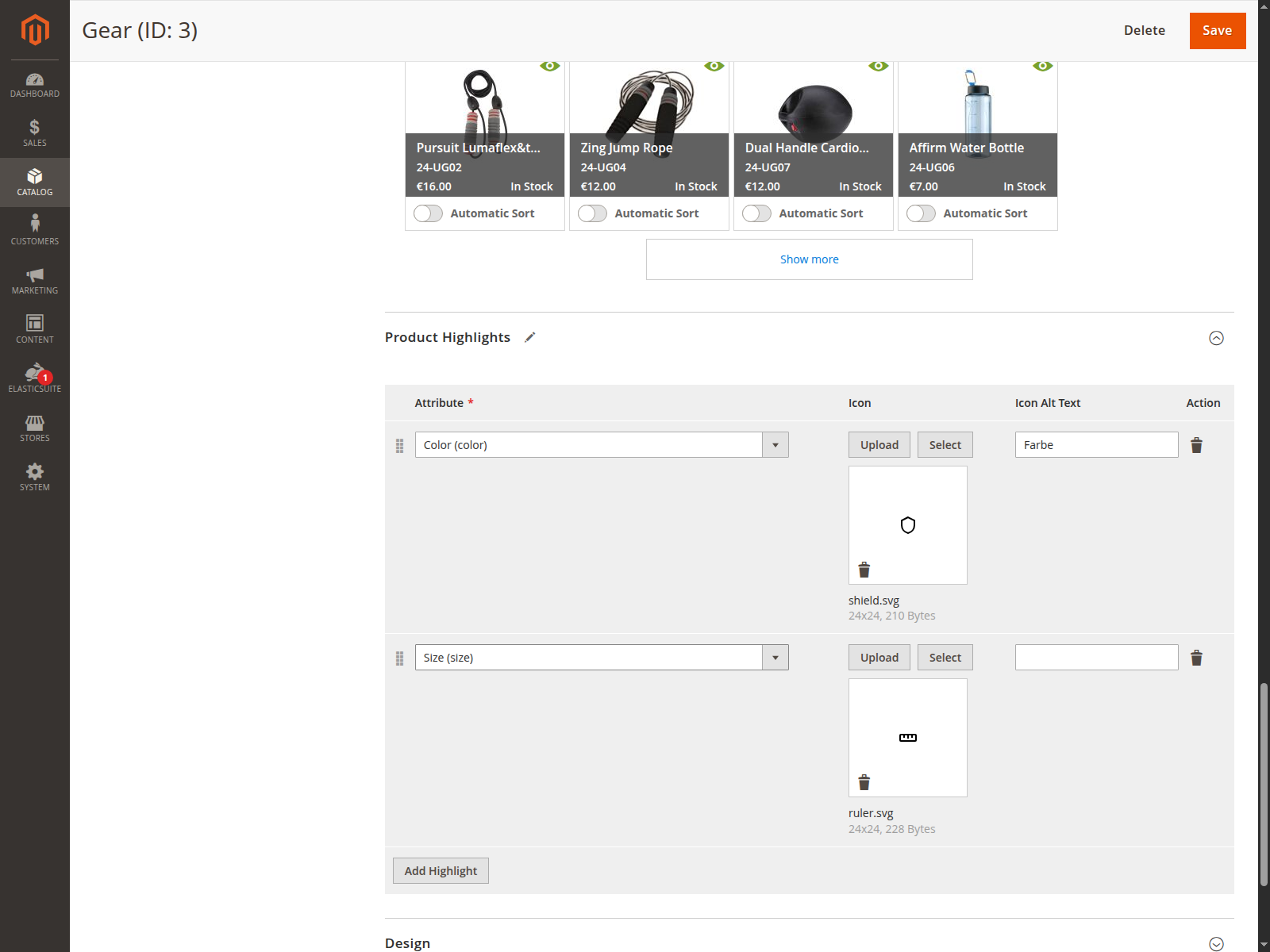
Every row describes one highlight:
| Field | Meaning |
|---|---|
| Attribute | The product attribute whose value is shown. The list holds every product attribute that carries a label. |
| Icon | A symbol placed in front of the value. Optional. |
| Icon Alt Text | The alternative text of the icon. Left empty, the attribute label is used. |
Add Highlight creates another row, the bin icon removes one.
Order
The order of the rows is the order of the output. It is changed by dragging the handle on the left and is kept on save.
What appears on the product page
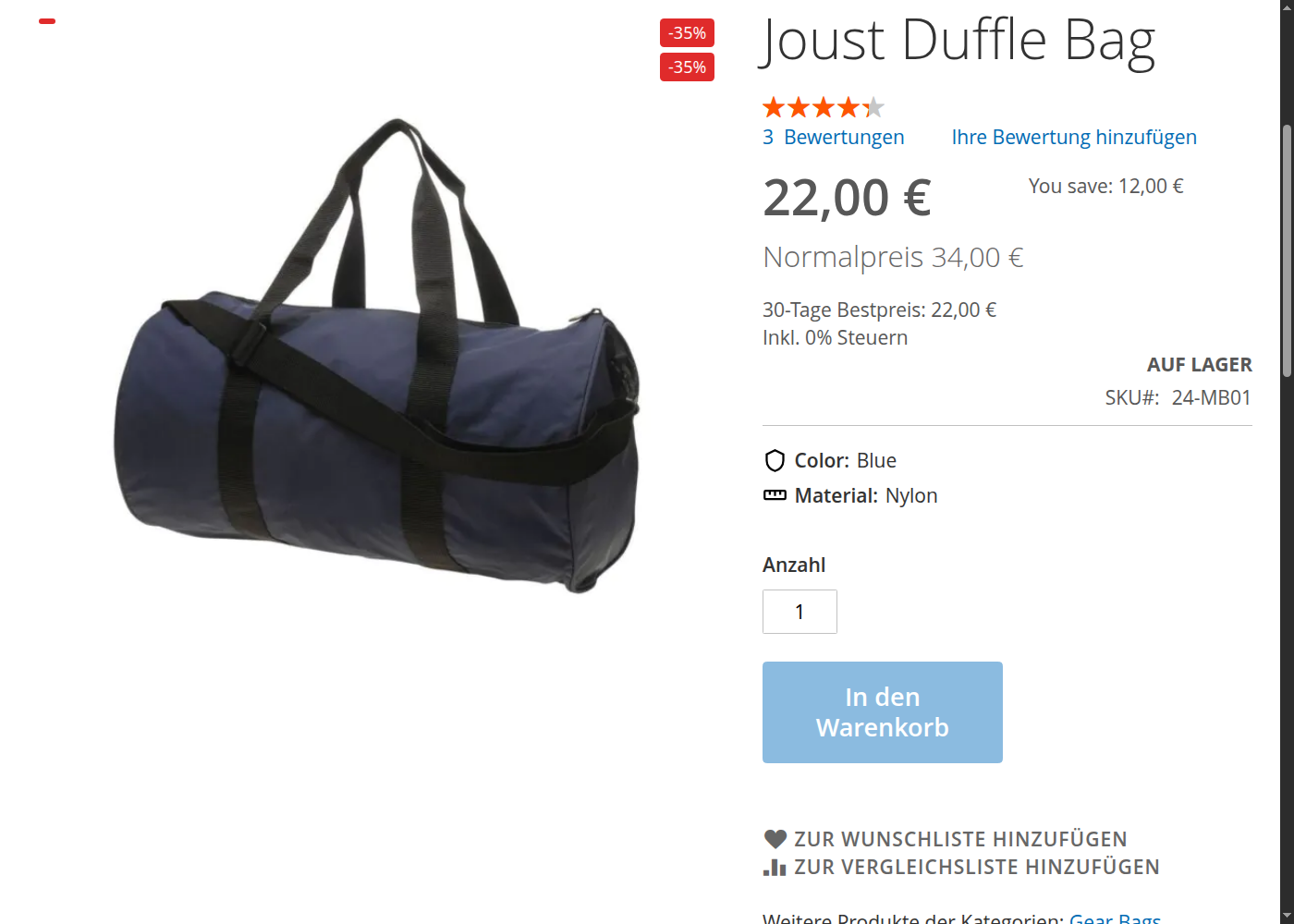
The attribute label and the value of the product are shown. An attribute the product carries no value for is skipped for that product. For a dropdown the option text is printed, for a multiple select all selected options separated by a comma.
4 Inheritance along the category tree
A product takes the configuration of the category it sits in. If that category has none of its own, the parent category is used, and so on up to the root.
As soon as a category carries its own configuration, only that one applies. The parent configuration is replaced, not merged.
An example:
| Category | Configuration | Result for products of this category |
|---|---|---|
| Safes | Fire protection, lock type | Fire protection, lock type |
| Safes → Security cabinets | none | Fire protection, lock type (inherited) |
| Safes → Furniture safes | Weight | Weight only |
A product assigned to several categories takes the deepest category of the current store tree. A visitor arriving from a category page gets that category.
5 Icons
Allowed are SVG and PNG, at most 1 MB per file. The file dialog offers those two types only.
Next to Upload there is Select. It lists the icons that are already stored, so the same file does not have to be uploaded once per category. The list is read afresh every time it is opened, so an icon another row has just uploaded is available right away. Only SVG and PNG files are listed.
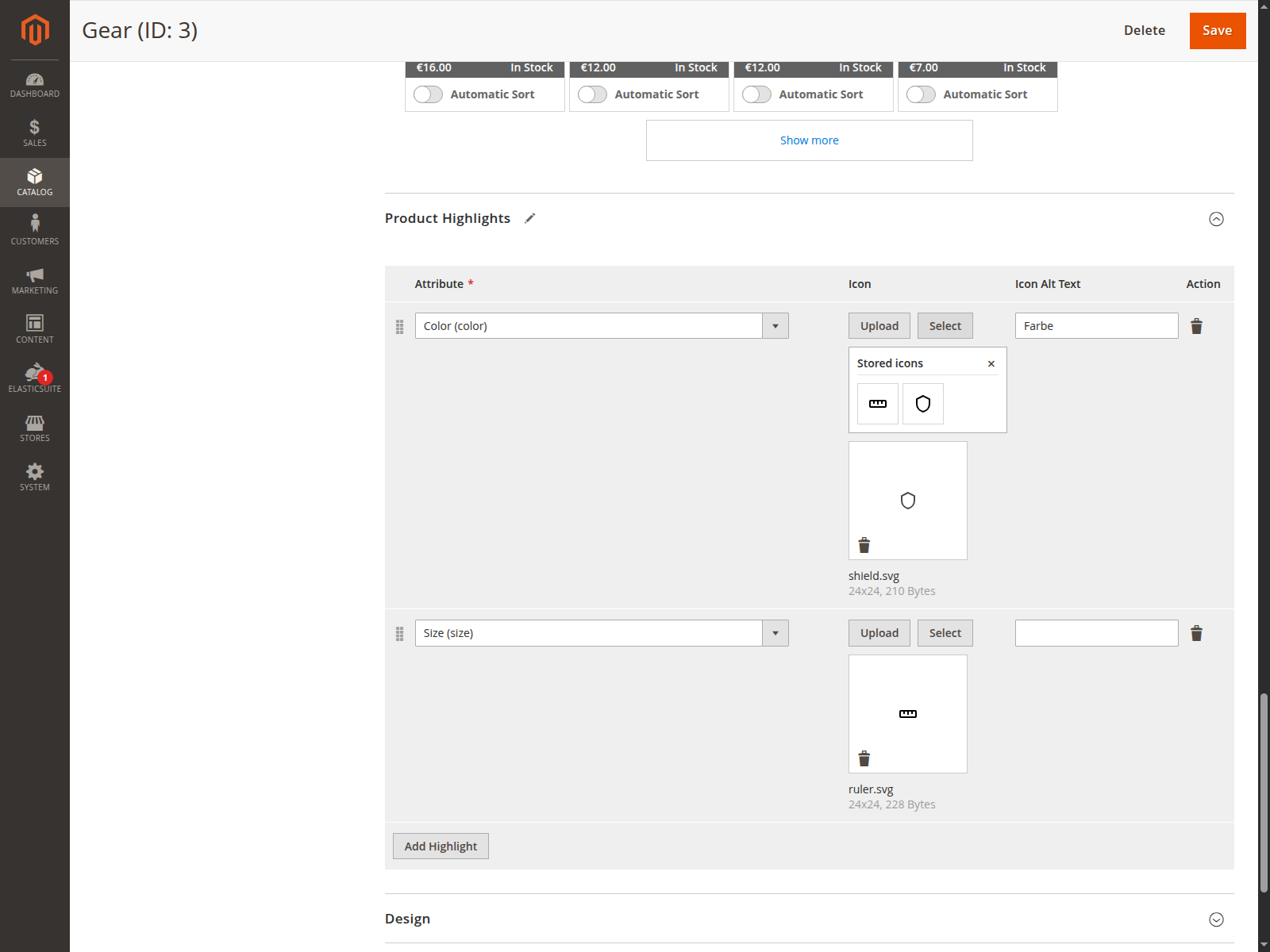
The list opens below the buttons and makes the row taller. It does not overlay the table, so it stays fully visible even in a narrow column.
Uploaded icons are stored in pub/media/catalog/category/highlight_icons. Before the file is written, the upload checks:
- the file extension,
- the MIME type,
- for an SVG the markup as well.
SVG files carrying scripts, event attributes, embedded foreign content or external references are rejected. Magento does not inspect SVG markup on its own, which is why the module brings that check along.
Deleting a row keeps the icon file. It may still be in use in another category or store view. Files that are no longer needed are removed in the media folder.
6 Store views
The attribute has store scope. A category can carry its own set per store view, for instance different attributes for a shop in another language.
Without a value of its own in the store view, the value of the default view applies.
7 Output in the theme
The block is named copex.product.highlights. Under Luma it sits in product.info.main, between the sku line and the add to cart form.
Under Hyvä the product info template renders named children only. A block it does not know is never asked for and therefore drops to the end of the page, below the review form. The module moves it into the container alert.urls, the earliest spot the default theme still outputs: below the stock status and above the attribute table. That spot shares a flex row with the stock status, so on a wide screen the highlights sit beside it rather than across the full width.
There is no placeholder between the rating stars and the short description, the short description is part of the template itself. To put the highlights there, add a container of your own in the theme and move the block a second time. The last move wins:
<referenceBlock name="product.info">
    <container name="product.info.short_description.before"/>
</referenceBlock>
<move element="copex.product.highlights" destination="product.info.short_description.before"/>
The module itself names no theme specific container. It provides the block and the markup, the theme decides the place.
Hyvä and Tailwind
The module registers itself with the Tailwind run of Hyvä. The classes of the Hyvä template therefore end up in the compiled CSS even when the module sits in vendor/. After the installation the theme is built once:
cd app/design/frontend/<Vendor>/<Theme>/web/tailwind
npm run build
Custom markup comes from replacing the template in the theme:
<referenceBlock name="copex.product.highlights"
                template="My_Theme::product/view/highlights.phtml"/>
Per highlight the view model provides label, value, icon_url and alt.
8 Cache
The resolved configuration is cached per category and store view. The entry is tagged with every category of the path, so a change on a parent category also drops the entries of its children.
Saving a category does that automatically. The entry belongs to the cache type "Collections Data", so the cache management in the admin and cache:flush reach it as well. After an import or a direct change in the database:
php bin/magento cache:clean
9 Troubleshooting
| Message | Cause | Remedy |
|---|---|---|
| Only SVG and PNG files are allowed as a highlight icon. | The file carries another extension or another MIME type. | Save the file as SVG or PNG and upload it again. |
| The SVG file contains scripts or external references and was rejected. | The SVG carries active content. | Export the SVG without scripts, for instance as "plain SVG". |
| The icon could not be saved. | The media folder is not writable or the file is empty. | Check the write permissions on pub/media. |
If no highlights appear on the product page, the usual causes are:
- The product carries no value for any of the chosen attributes.
- The configuration was maintained in a different store view.
- The cache has not been dropped yet, see section 8.
Processing errors are written to var/log/system.log and never break the product page. In doubt the area stays empty.
10 License
Proprietary software of CopeX GmbH. Use requires a valid license agreement.
CopeX GmbH
Web: https://copex.io
Email: office@copex.io