Warranty Label¶
Extension for Magento 2¶
User Manual¶
CopeX GmbH Web: https://copex.io Email: office@copex.io
Table of Contents¶
- Introduction
- Requirements
- Configuration
- Product data for the GARAN label
- Guarantee terms as an attachment
- Data audit
- Troubleshooting
- Obligations that stay with the merchant
1 Introduction¶
From 27 September 2026, Implementing Regulation (EU) 2025/1960, together with Directive (EU) 2024/825, requires two new pieces of information in online retail. This module implements both:
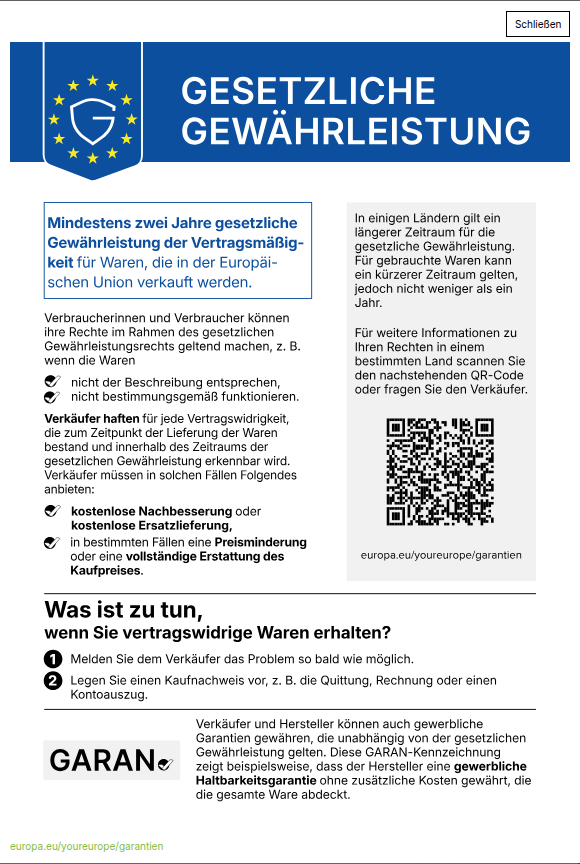
- The legal guarantee notice (Annex I of the Regulation) is an official graphic that every shop selling goods to consumers must display. It informs customers about their statutory guarantee rights and is mandatory whether or not a producer offers an additional guarantee.
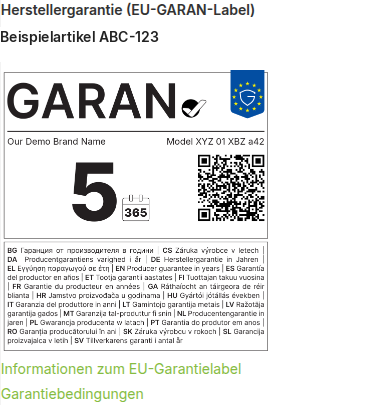
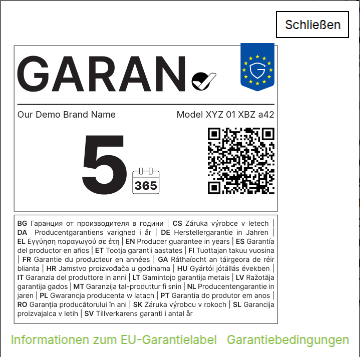
- The GARAN label (Annex II) concerns individual products only: those for which the producer grants a free durability guarantee covering the entire good for more than two years.
Both graphics are prescribed by law. The module ships them in all 24 EU languages and never alters them — neither colours nor type, spacing or QR code. On the GARAN label, only the four intended fields are filled in: brand, model identifier, duration and the link to the guarantee terms.
The module is switched off after installation. Nothing appears in the shop until you deliberately enable it.
This manual describes how to operate the module. It is not legal advice. Which of your products carry a qualifying producer guarantee, and how the display is to be assessed legally, is for you or your legal counsel to decide.
2 Requirements¶
| Component | Version |
|---|---|
| Magento 2 Open Source / Adobe Commerce | 2.4.x |
| PHP | 8.2 or newer |
| PHP extension GD | with FreeType support |
The GD extension must be compiled with FreeType. The GARAN label is produced server-side by drawing the text fields onto the official template. Without FreeType the module cannot render type and produces no label. To check your installation, run php -i | grep -i freetype.
The legal guarantee notice works without GD, because it ships as a finished graphic.
2.1 Installation¶
composer require copex/module-warranty-label
bin/magento setup:upgrade
bin/magento setup:di:compile
bin/magento cache:flush
2.2 Uninstalling¶
bin/magento module:uninstall CopeX_WarrantyLabel --remove-data
The --remove-data flag matters. Without it the four GARAN attributes stay in the database, and their
stored backend model names classes of this module. An installation that loses the files but keeps those rows
then answers every product page with an error, because loading product attributes tries to instantiate a
class that is no longer there.
Removed with the flag: the four attributes and their attribute group, every setting below
copex_warrantylabel, the sales_order_item.copex_garan_label column, and the cached label images below
pub/media/copex_warranty_label/garan.
The uploaded guarantee terms PDF is kept (pub/media/copex_warranty_label/terms). That file is your own
document and may still be linked from past orders; delete it by hand when you no longer need it.
3 Configuration¶
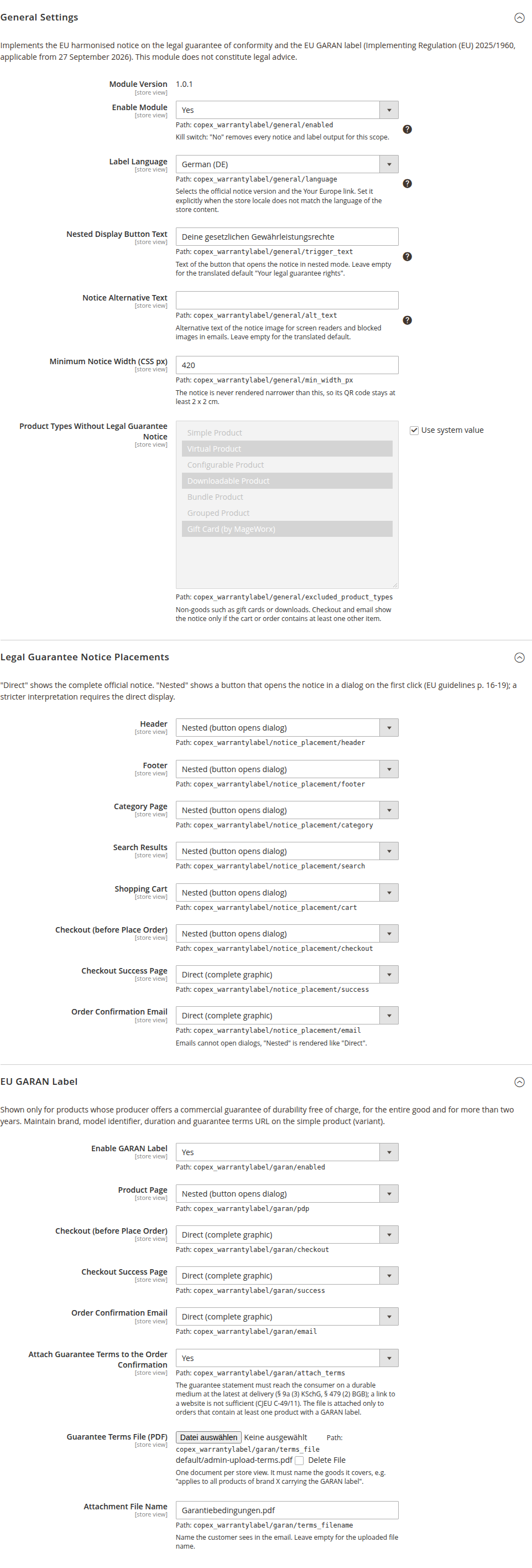
All settings live under Stores → Configuration → Sales → EU Guarantee Notice & GARAN Label. The section is scoped per store view, so each storefront can have its own language and its own display modes.
3.1 General settings¶
- Enable Module — the main switch. Set to No, neither notice nor label appears in this scope, whatever the other settings say. Default: No.
- Label Language — selects the official language version of the notice and the target of the link. Automatic (from store locale) derives the language from the store locale. Set it explicitly when the locale does not match the language of your shop content — for example an English storefront that technically runs on
de_AT. If no language can be determined, English is used. - Nested Display Button Text — the caption of the button that opens the notice in nested mode. Leave empty for the translated default "Your legal guarantee rights".
- Notice Alternative Text — the alternative text of the graphic for screen readers and for email clients that block images. Leave empty for the translated default.
- Minimum Notice Width (CSS px) — the graphic is never rendered narrower than this, so its QR code stays scannable. Default: 420. Do not lower it without good reason: below that width the QR code falls under the required minimum size.
- Product Types Without Legal Guarantee Notice — product types that are not goods in the sense of the legal guarantee, such as vouchers or downloads. Default: Virtual, Downloadable, Gift Card, MageWorx Gift Cards. In the cart, the checkout and the email, the notice appears only if at least one other item is present.
3.2 Legal guarantee notice placements¶
For each placement you choose one of three modes:
| Mode | Meaning |
|---|---|
| Off | No output at this position. |
| Direct (complete graphic) | The complete official graphic sits directly on the page. |
| Nested (button opens dialog) | A button opens the graphic in a dialog on the first click. |
The nested display is permitted by the European Commission's guidelines. A stricter reading requires the direct display. Because this is a legal question, the module lets you decide per placement.
| Placement | Default |
|---|---|
| Header | Nested |
| Footer | Nested |
| Category Page | Nested |
| Search Results | Nested |
| Shopping Cart | Nested |
| Checkout (before Place Order) | Direct |
| Checkout Success Page | Direct |
| Order Confirmation Email | Direct |
Two notes on choosing the mode:
- Narrow containers need "Nested". Where the available space is narrower than the configured minimum width, the direct graphic looks cut off. The checkout sidebar of many themes is narrower. In the dialog the graphic appears at full size.
- Emails have no dialogs. If the email placement is set to Nested, it is rendered like Direct.
The dialog is fully keyboard operable: Enter or Space open it, Escape closes it, and focus returns to the button afterwards.

3.3 GARAN label¶
- Enable GARAN Label — releases the label. Default: No. While it is off, the product attributes are kept but displayed nowhere.
- Product Page — Default: Nested.
- Checkout (before Place Order) — Default: Direct. The label appears both on the individual item and collected directly above the place-order button. The second position matters on mobile, where the item list is collapsed.
- Checkout Success Page — Default: Direct.
- Order Confirmation Email — Default: Direct.
The remaining fields of the group concern the attachment and are described in chapter 5.

4 Product data for the GARAN label¶
The module creates no guarantee data. It only displays what you maintain.
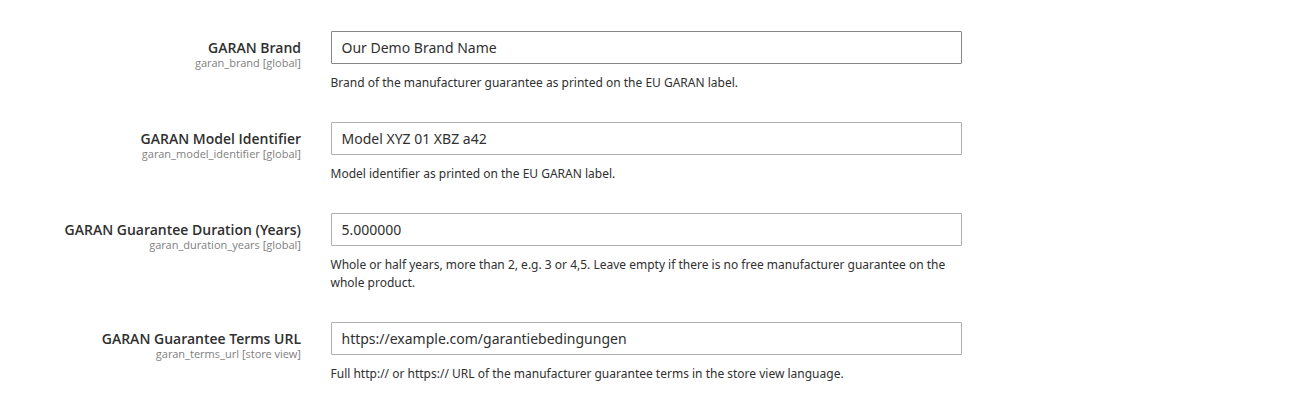
On installation, the group EU GARAN Guarantee is added to every attribute set, holding four attributes. They apply to simple products only, because the model identifier belongs to the specific variant rather than to the configurable parent.
| Attribute | Scope | Meaning |
|---|---|---|
| GARAN Brand | global | The brand as printed on the label. |
| GARAN Model Identifier | global | The model identifier as printed on the label. |
| GARAN Guarantee Duration (Years) | global | Whole or half years, more than 2, e.g. 3 or 4,5. Leave empty when there is no free producer guarantee on the whole product. |
| GARAN Guarantee Terms URL | store view | Full http:// or https:// address of the guarantee terms in the language of the storefront. |
A label appears only when all four values are present and valid. If one is missing, the module displays nothing — it never shows an incomplete label.

4.1 When a product qualifies at all¶
The GARAN label is not a marketing device but mandatory information for a narrowly defined case. The guarantee must
- come from the producer (not the retailer),
- be free of charge for the consumer,
- cover the entire good (not just individual components) and
- run for more than two years.
If even one of these does not hold, no label may be set. Leave the duration empty in that case.
4.2 Variants¶
On configurable products the values belong to the selected variant. The module therefore shows
- no label on the configurable parent,
- no label while no variant has been selected,
- and swaps the label as soon as the customer selects a different variant.
On bundle products all contained items are taken into account.
4.3 Half guarantee years¶
The Regulation permits half years. At the official type size, however, only whole years from 3 to 99 and the value 7,5 fit into the field provided. Other half-year values such as 2,5 or 4,5 can be saved, but produce no label, and the data audit reports the reason duration_does_not_fit.
This is deliberate. The alternative would be to shrink the type or move the calendar icon — both breach the design rules. A clarification has been requested from the European Commission.
4.4 Ordered goods keep their label¶
When an order is placed, the module stores the label data on the order item. Changing an attribute later does not change existing orders. A re-sent document still shows the values that applied at the time of purchase.
5 Guarantee terms as an attachment¶
A link to a website is not legally sufficient. The guarantee statement must reach the consumer on a durable medium, at the latest at delivery (Art. 17(2) of Directive (EU) 2019/771, § 9a (3) KSchG, § 479 (2) BGB). The Court of Justice of the European Union has ruled that a website merely referred to does not meet this requirement (Case C-49/11).
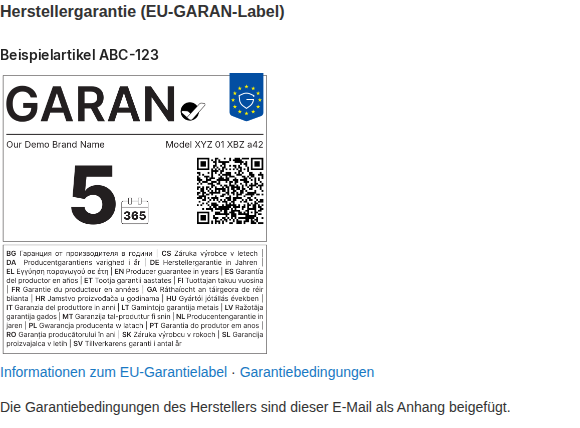
The module therefore attaches a PDF file to the order confirmation — only for orders containing at least one product with a GARAN label. No additional extension is required.
5.1 Setting it up¶
- Attach Guarantee Terms to the Order Confirmation — enables the attachment. Default: No.
- Guarantee Terms File (PDF) — the file. One document per store view.
- Attachment File Name — the name the customer sees in the email. Leave empty for the name of the uploaded file. Default:
Garantiebedingungen.pdf.
The file must be uploaded in the admin. The command bin/magento config:set cannot write file fields, because a real upload is expected behind the scenes. A value set from the command line has no effect.
5.2 One document for several products¶
One document per store view is sufficient as long as it states which goods it covers — for example "applies to all products of brand X carrying the GARAN label". If you need different terms for different brands, combine them in one document or separate the brands into their own store views.
The attachment does not replace the link on the label. Both are required: the link for the information before purchase, the attachment for the durable medium.
6 Data audit¶
The following command lists all simple products whose GARAN data is incomplete or invalid and which therefore show no label:
bin/magento copex:warranty-label:audit
| Option | Meaning |
|---|---|
--store=<ID or code> |
Checks the values in this store view. Without it, the admin values are checked. |
--limit=<count> |
Stops after this many problematic products. 0 means no limit. |
The output is a table of SKU, product ID and reasons, followed by a summary of how many products were checked.
Because the guarantee terms address is scoped per store view, a run per storefront is worthwhile:
bin/magento copex:warranty-label:audit --store=at
Run the command after every bulk import. Tools that write directly into the database bypass validation on save — the module therefore validates again at display time, so faulty data never produces a wrong label, but equally produces no label at all, silently.
7 Troubleshooting¶
7.1 No GARAN label appears¶
The audit from chapter 6 names a reason for each product:
| Reason | Meaning |
|---|---|
missing_brand |
The brand is missing. |
missing_model_identifier |
The model identifier is missing. |
missing_duration |
The duration is missing. |
missing_terms_url |
The link to the guarantee terms is missing. |
invalid_duration |
The duration is not a number above 2 in steps of 0.5, or it exceeds 99. |
duration_does_not_fit |
The duration is permissible but does not fit the label field (see section 4.3). |
invalid_terms_url |
The link is not a complete http:// or https:// address. |
too_long |
Brand or model identifier are too wide for the field provided. |
If the audit reports nothing and still no label appears, check in order: is Enable Module active? Is Enable GARAN Label active? Is the placement set to something other than Off? Is this a simple product, or has a variant been selected?
7.2 Brand or model identifier are rejected¶
The label fields have a fixed width. The module measures the text in the official typeface and rejects values that are too wide instead of shrinking the type. Shorten the entry — usually it is enough to drop additions such as the product line.
7.3 The notice looks cut off¶
The container is narrower than the configured minimum width. Set this placement to Nested; in the dialog the graphic appears at full size. Do not reduce the minimum width, or the QR code becomes too small.
7.4 The email carries no attachment¶
The attachment is sent only with orders containing at least one product with a GARAN label. Check as well whether Attach Guarantee Terms is active in the right store view and whether a file has actually been stored there — a value set from the command line has no effect (see section 5.1).
7.5 The language does not match the shop¶
The language of the notice follows the Label Language setting, not the locale. When it is set to Automatic, the store view locale is used. For an English storefront running on a German locale, set the language explicitly.
8 Obligations that stay with the merchant¶
The module presents the prescribed information. It does not judge whether that information is correct. The following remain your responsibility:
- Selecting the products. Which goods carry a qualifying producer guarantee is for you to decide, based on the producer's commitment.
- Maintaining the data. Brand, model identifier, duration and terms must be current. When a guarantee commitment ends, remove the values.
- The content of the guarantee terms. The stored PDF is your document; the module checks neither its content nor its completeness.
- Choosing between direct and nested display. This is a legal question to settle with your legal counsel.
- Marketplaces. On Amazon, eBay and comparable channels the display obligation lies with the marketplace. Switch the module off for store views serving such channels.
A complete mapping of the legal requirements to their implementation ships with the module as the file docs/COMPLIANCE-DE.md (German). That document is written for your legal counsel.